









Training
New Training Available: Reconcile with Preview in Merchandise Plan
Learn how Reconcile with Preview gives you greater visibility and control during reconciliation by allowing you to review results before they’re saved to your plan. This training shows how to validate outcomes, apply business logic, and ensure accuracy before finalizing changes. Head over to Toolio Academy to learn how to use this enhanced reconciliation workflow with confidence!
New Training Available: Data Scope
Learn how Data Scope defines and controls access to specific subsets of data within Toolio’s product hierarchy. The Toolio Academy explains how Data Scope ensures users only see and interact with information relevant to their role, improving data security and operational efficiency. You’ll learn how Data Scope manages visibility across divisions, departments, and classes to align data access with organizational structure and user responsibilities.
New Training Available: Location Lists in Assortment Plan
Learn how Location Lists can enhance the Assortment Planning workflow by enabling planners to work with specific subsets of stores—without creating new Automated Cluster Groups (ACGs). This training covers how Location Lists act as a flexible filtering layer on top of existing ACGs, helping reduce duplication, simplify maintenance, and support more adaptable planning. You’ll also learn where Location Lists are managed, how they appear in exclusions, and how they integrate into Line Planning and downstream calculations. Check out the Toolio Academy for more information!
New Training Available: Promotional Causal Enhancements
New training is now available covering recent enhancements to Promotional Causals. Learn what’s changed, how the updates improve accuracy and usability, and best practices for applying them in your workflows. Check out the training in Toolio Academy to stay aligned and get the most value from the new functionality.
Merchandise Planning
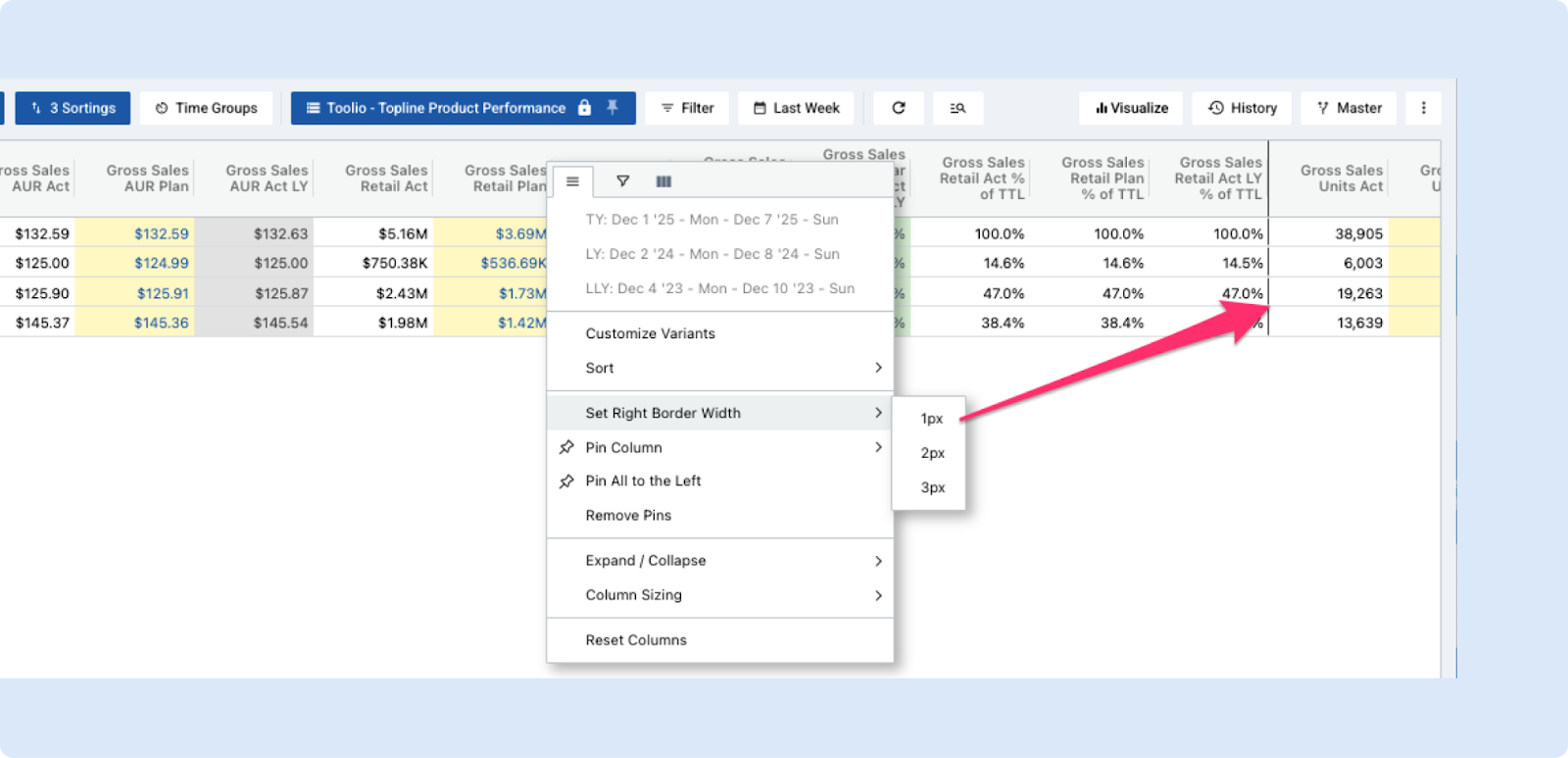
Set Column Right-Border Widths (Merchandise Planning)
Merchandise Planning now lets you set a right border width on any column (1px, 2px, or 3px) from the column header right-click menu — borders apply immediately, can be toggled off by selecting the same width again, and are saved with your view so they persist across sessions.
This makes dense grids easier to scan and helps visually separate or group columns without changing layout. The same capability will be added to Assortment Plan and Allocation in the weeks to come.
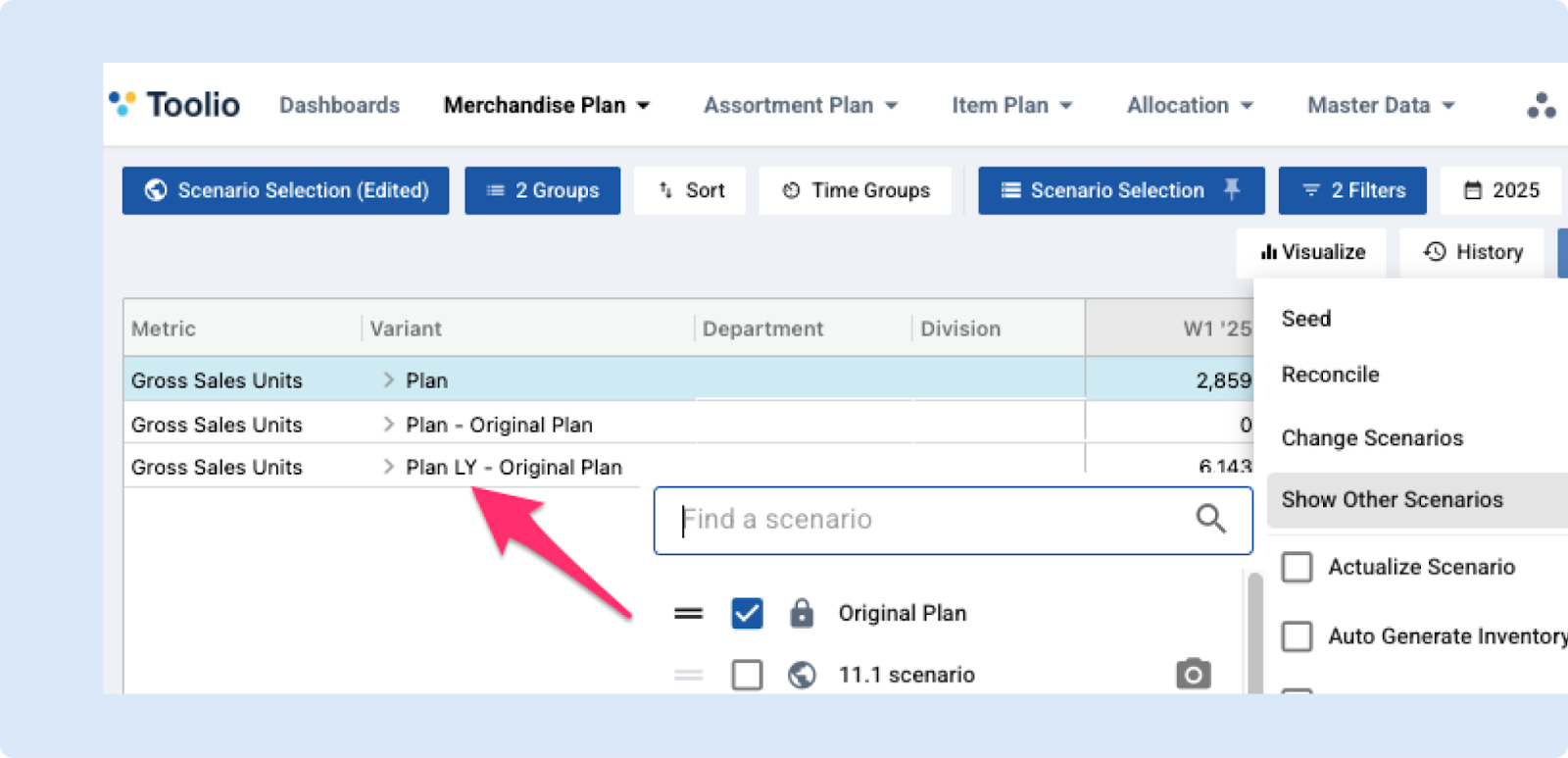
Expanded Scenario Variant Visibility
Enhanced scenario visibility when Show Other Scenarios is enabled.
Previously, users could only view:
- Plan – Scenario comparisons.
Now, all scenario variants are included—such as:
- Plan LY – Scenario
- Plan % of TTL – Scenario
- and others
Providing a more complete and consistent view across planning scenarios.
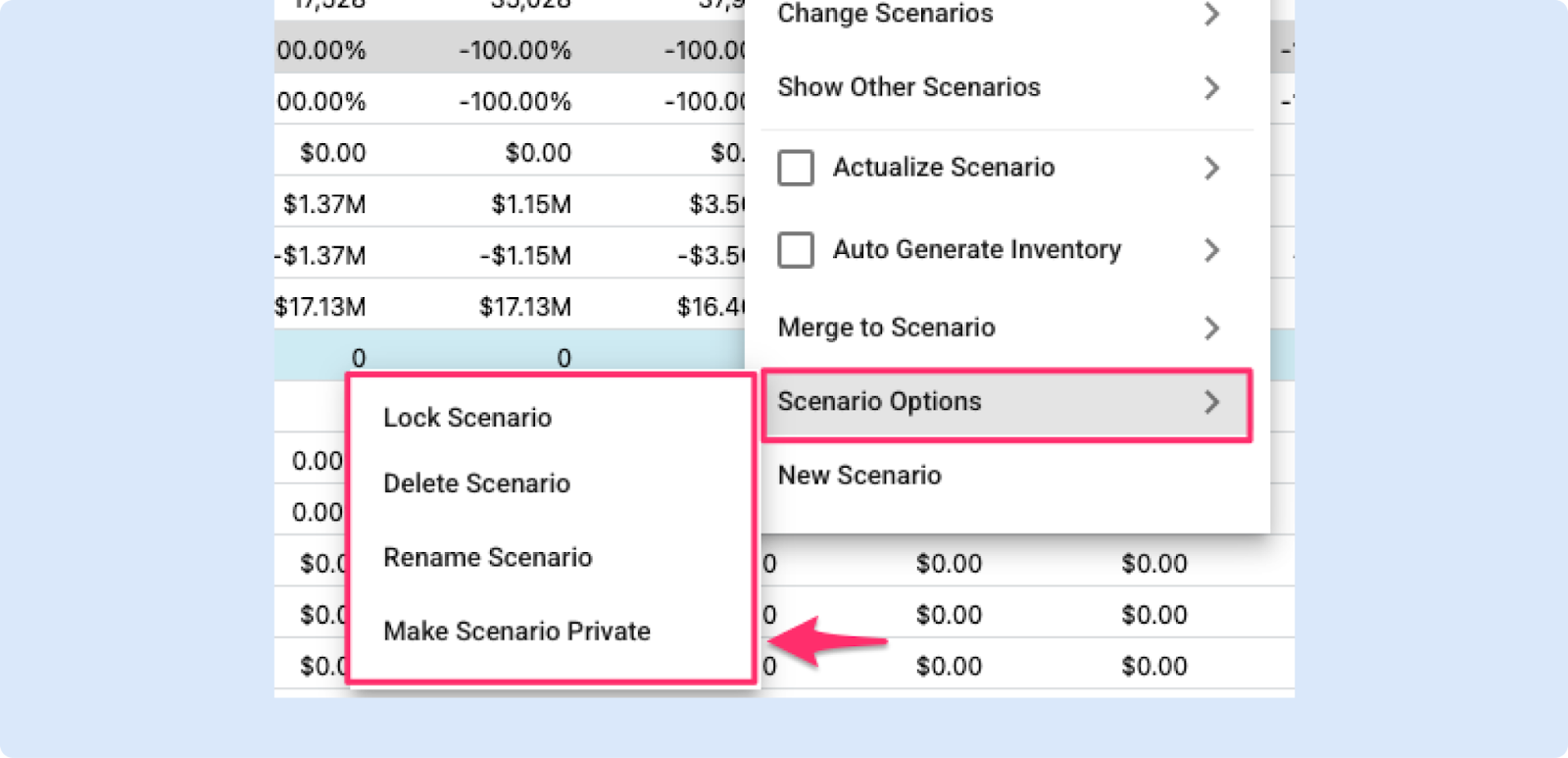
Improved Scenario management
We’ve made it easier to share, protect and manage your scenarios.
What’s new
- A new Scenario Options menu puts all scenario actions in one place — Lock, Rename and Delete are now grouped together for faster access.
- You can now toggle any scenario between Public and Private from the Options menu, even after it’s created.
Assortment Planning
Hindsight Analysis Improvements
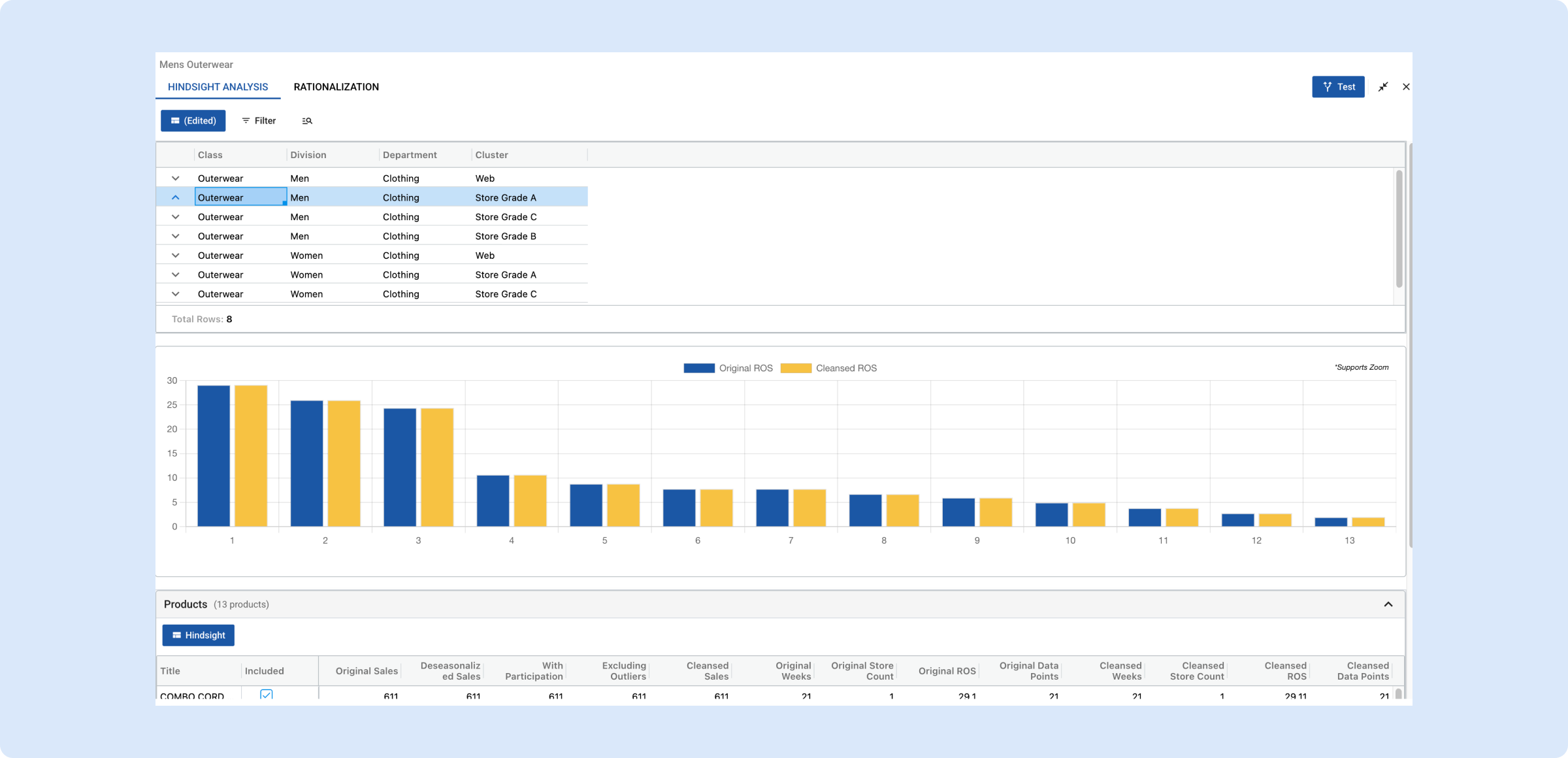
We’re improving the Hindsight Analysis screen to make partition selection faster and the workflow more consistent.
What’s changing
Partitions: filters + views:
- Replace the current dropdown (thousands of partition/cluster combinations) with a filterable grid that shows key partition info at-a-glance.
- Support expandable row details so you can drill in without losing your place.
Richer partition columns:
- Add key data directly into the grid columns, including everything previously shown in the two small grids: Cleansed & original ROS, Key rationalization points/inputs.
Layout: plot + product grid:
- Replace the plot above the product grid.
- On page load, preload plot + product data, but keep the product grid collapsed by default to preserve space and reduce clutter.
Faster navigation:
- Double-click a partition row to load/open it directly in the Hindsight screen.
👉 Read more about Hindsight Analysis
Set Column Right Border Widths Now Available in Assortment Plan Reporting
You can now set column right border widths in Assortment Plan reporting, in addition to Merchandise Planning.
For more details, see the original post: Set column right border widths (Merchandise Planning)
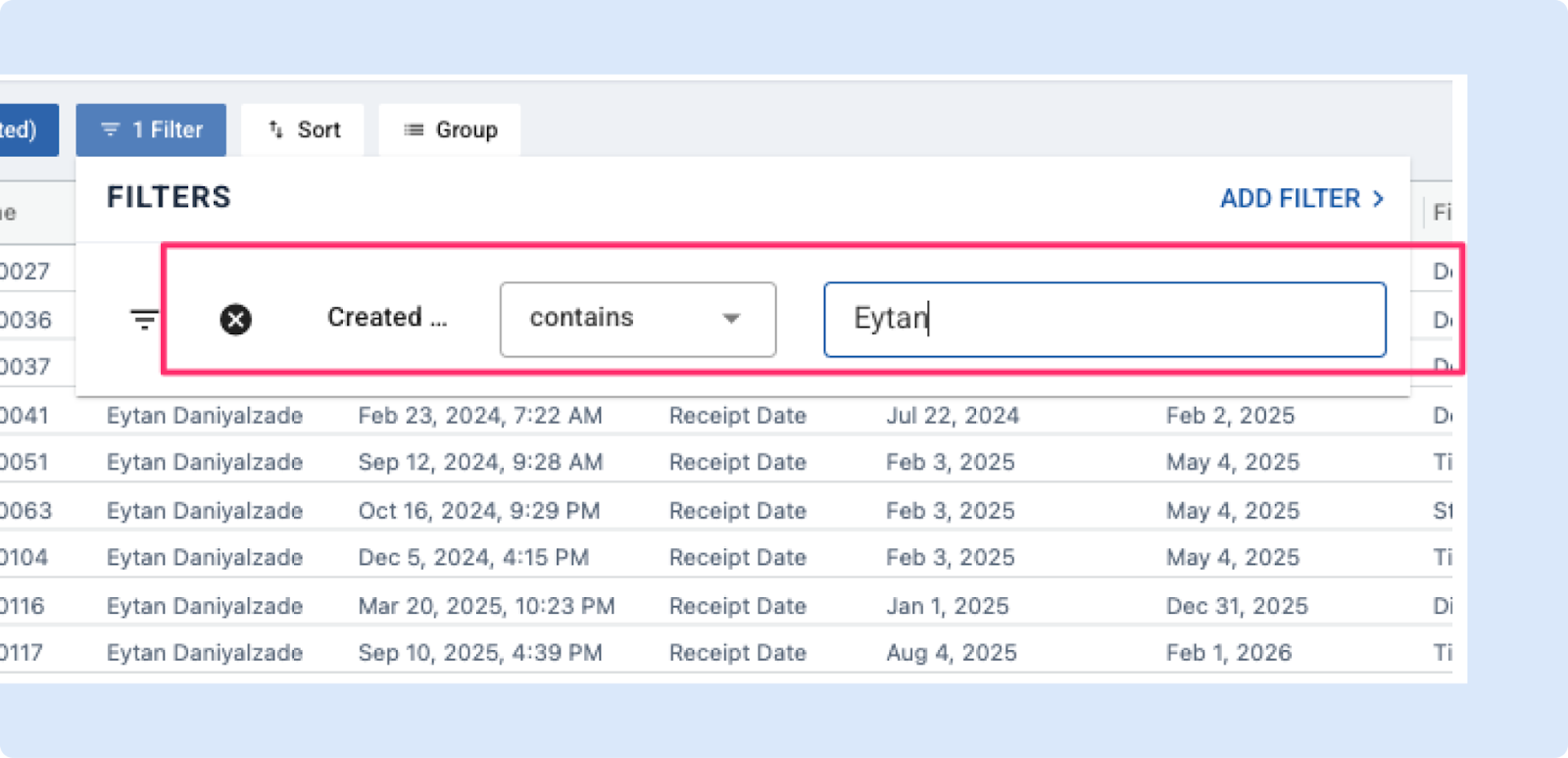
See and filter Purchase Orders by who created them
We've added a Created By column and filter to the Suggested / Recommended Purchase Orders screen so you can easily see who created each PO and narrow the list to POs written by a specific colleague.
What’s changed
- A new Created By column shows the person who created each purchase order.
- A new Created By filter lets you show only POs created by a specific user.
Why it helps
- Gives teams visibility into who is writing POs as more people take part in the process.
- Makes it easier to review, audit, or follow up on POs created by particular teammates.
Where to find it
Open the Recommended Purchase Orders screen and enable the Created By column or use the Created By filter to select the person you want to see.
Dynamic Grouping in AP Reporting
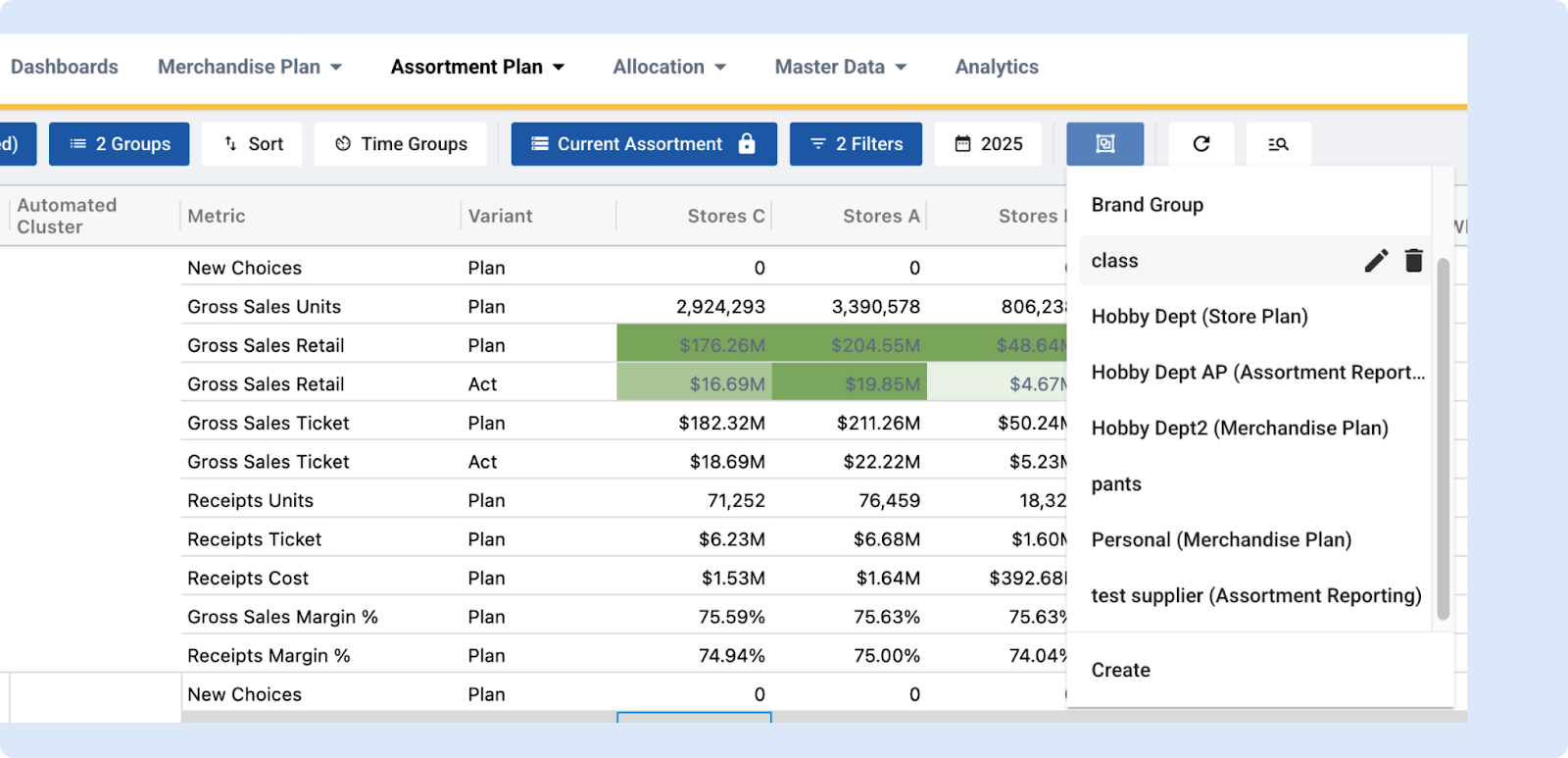
Dynamic Grouping was previously available only in Merchandise Plan. It is now also supported in Assortment Plan Reporting. In addition, any dynamic grouping created in one module can now be reused across other modules, provided the relevant attributes exist in those modules.
What is Dynamic Grouping?
In many planning scenarios, users need the flexibility to group entities based on business context rather than fixed hierarchies. Examples include grouping vendors by strategic importance or brands by performance tiers. These groupings are often ad hoc, user-defined, and difficult to support within rigid data structures.
The goal of the Dynamic Groupings feature is to give users the ability to create, manage, and apply flexible, custom groupings of attribute values such as brands or suppliers directly within the planning interface. These groupings behave like hierarchical levels, enabling aggregation, filtering, and value spreading, all without requiring changes to the underlying data model.
👉 Read more on dynamic grouping
Set Row Limit in Reporting (AP Reporting)
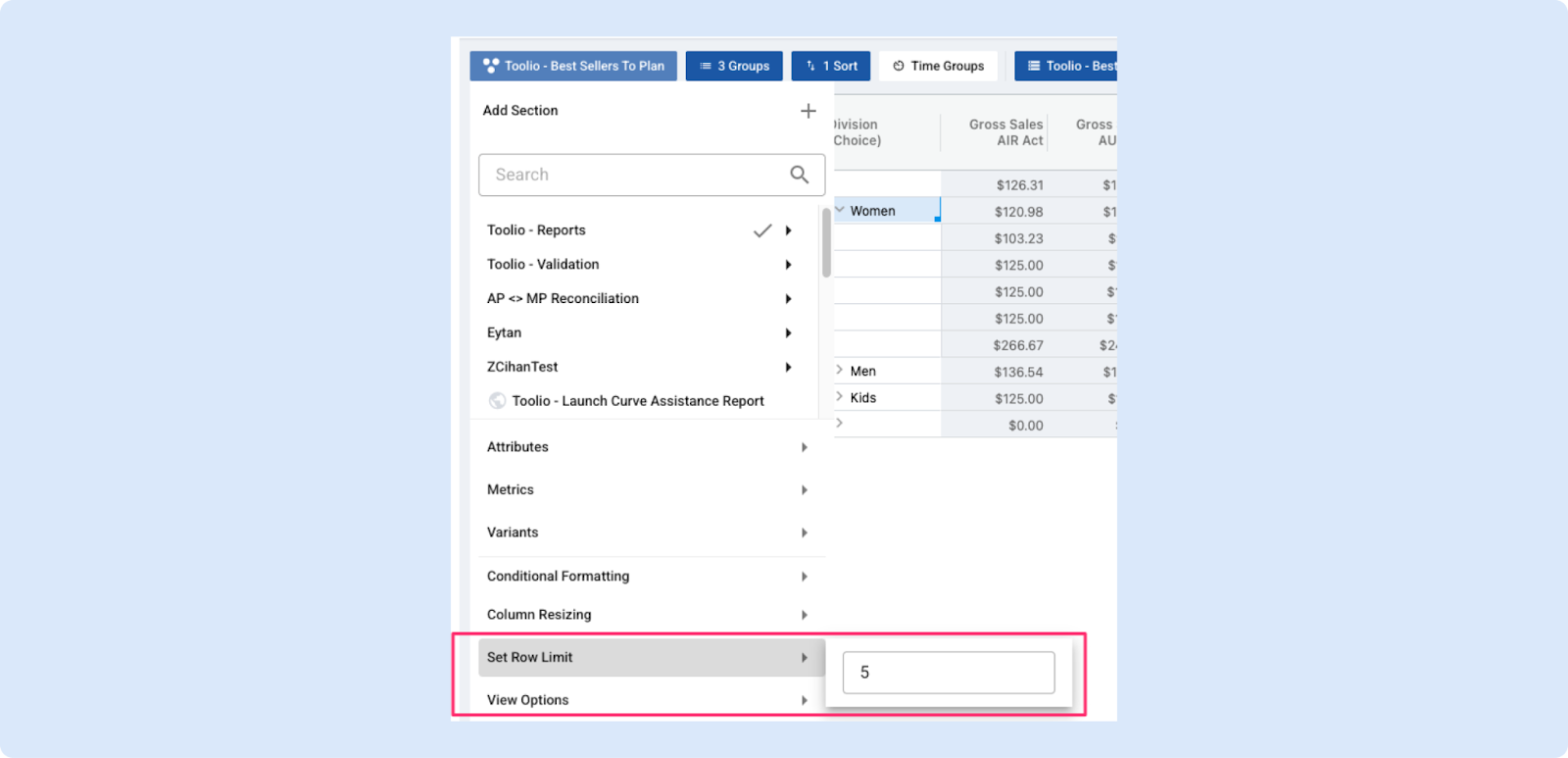
You can now limit the number of rows shown for each group in Reporting using Set Row Limit, just like the existing Gallery View behavior. This gives you a simple way to show a Top N for each grouping (for example: Top 10 this year vs. Last Year) or to add best-sellers to dashboards without flooding the view.
How to use
- Open a Reporting view.
- Click Set Row Limit in the view menu.
- Enter the number (e.g., 10 for Top 10) — 0 = no limit.
- The view refreshes to show the top N rows per group and the setting is saved with the view.
Why this helps
- Quickly compare top-N lists (Top 10 YoY, best sellers per category, etc.) without extra filtering.
- Keeps dashboards concise and focused on the most important items.
- Works with nested groups so you get consistent Top N behavior at every level.
Pinned lines in New AP and Allocation Strategies views
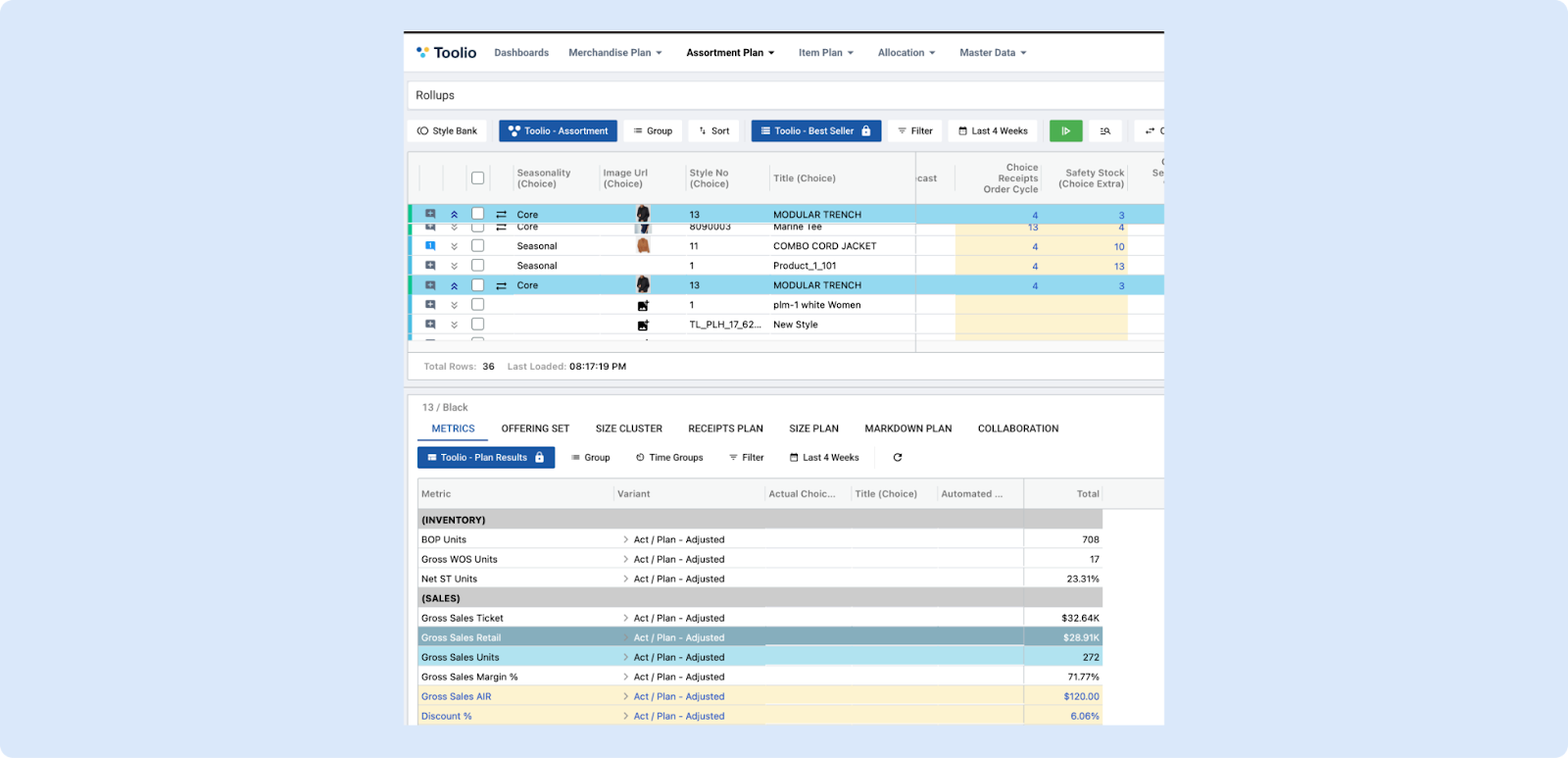
It is now easier to keep track of choice level details when users expand New AP metrics details with pinned lines in the line view. Similar pinned component is also available in Allocation Strategies view as well.
Receipts Offset in New AP
In order to account for DC processing times, we have introduced the Receipt Offset concept to the PO Manager workflow in our latest release.
👉 Read more about receipt offsets
Assortment Plan — Change History
We’ve released v1 of Cell Change History in Assortment Plan, giving planners more transparency into how a plan evolves and making it easier to understand what changed, when, and by whom.
New capabilities in:
- See how inputs changed over time — quickly review the sequence of edits to understand how a value evolved.
- See all the users that have added edits — improve collaboration and accountability by knowing who contributed changes.
- Quick filter by column — narrow in on a specific column to instantly see value changes for that metric.
How to access it:
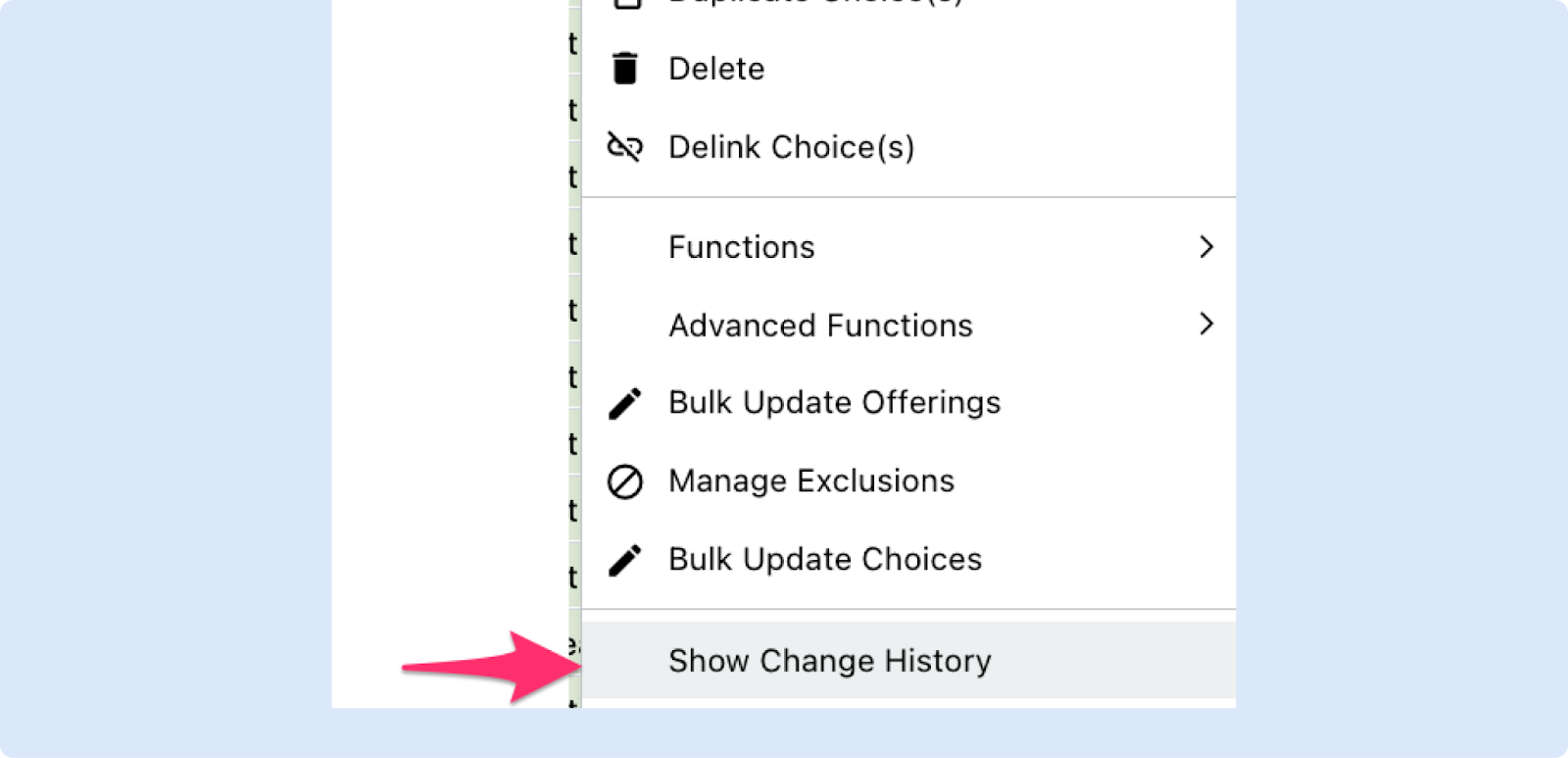
- Right-click on a row and select “Show Change History.”
- Note: This currently does not work for group rows (for now).
This is just the first version, and we plan to continue improving it. If you have questions, feedback, or suggestions for enhancements, please reach out — we’d love to hear from you.
Lock Forecast on Offering (Cluster) Level
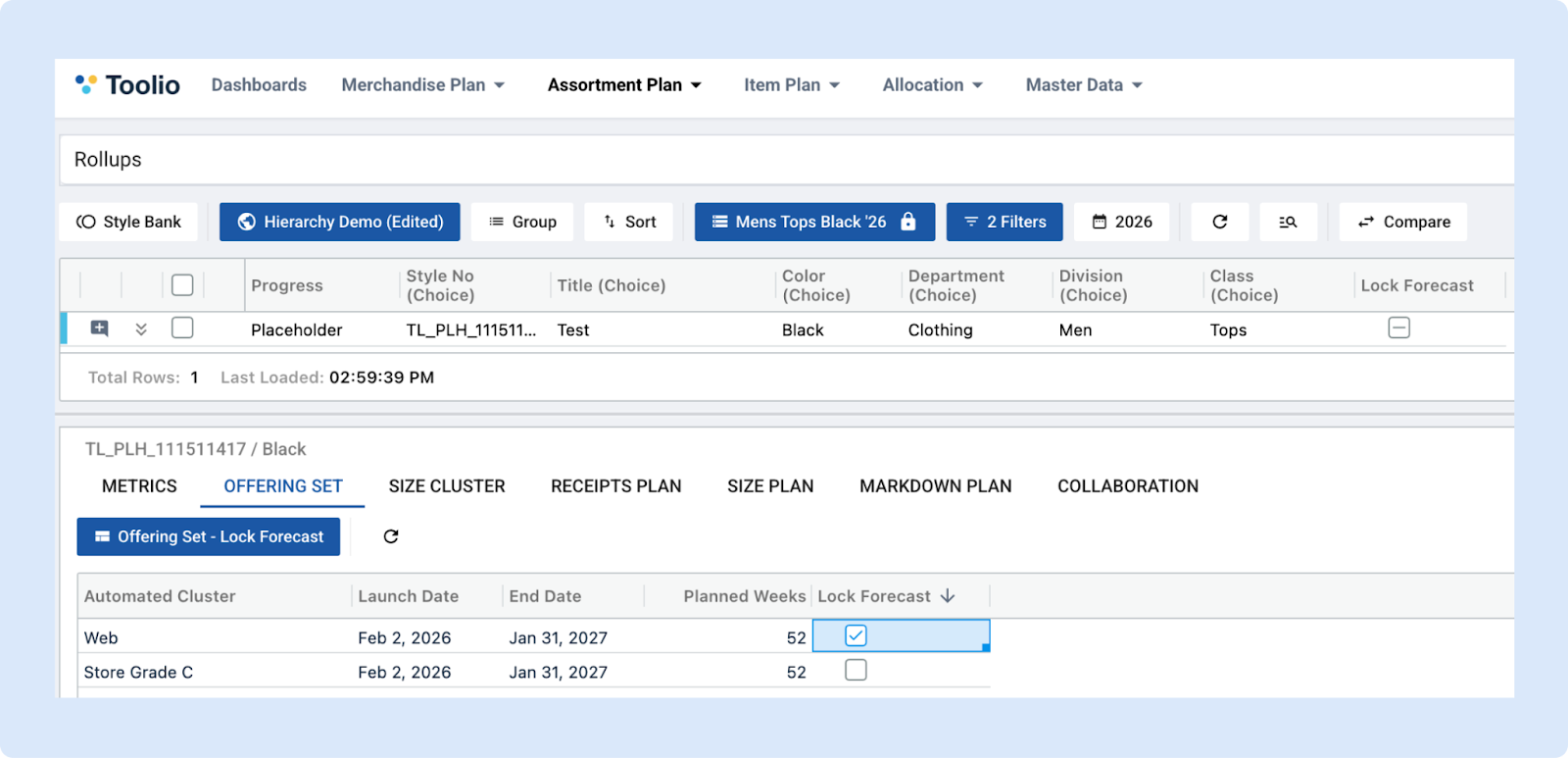
Toolio introduced offering level Lock Forecast functionality in addition to the choice level Lock Forecast controls.
By default, the system copies calculated forecast results into Adjusted Metrics so you can continue planning with system-recommended outputs, but you may want to manually edit these results for certain use cases. To prevent the system from overwriting your changes, you can enable the Lock Forecast checkbox and save. Forecasts can be locked at either the choice level or the offering level by navigating to the Offering Set tab and adding the Lock Forecast attribute, giving you granular control for individual clusters. Once locked, future executions of the Forecast function will preserve your edited Adjusted Sales Plan and system calculations will no longer be applied.
👉 Read more about Lock Forecast
Size Cluster Tab
We have introduced a new tab called "Size Cluster" to the New AP module, that provides our user an ability to view and revise sizes and associated size curves at cluster detail.
👉 Read more about size clustering
ROS Calculations Now Require Filters
In a recent change, we have introduced various backend and frontend code changes that requires users to select a filter for ROS calculations. These changes impact New Assortment and Allocation modules, as we use the same ROS Model calculation for both.
👉 Read more about ROS Calculation Filters
Size Plan Tab
We have added a new tab called Size Plan to New AP to help users view size-inventory group metrics in a time series format similar to the Metrics tab. Source data of this tab is similar to the Receipts Plan tab, hence location-wise lowest available level is Inventory Group.
Product Hierarchy Filter in Assortment Plan Creation Screen
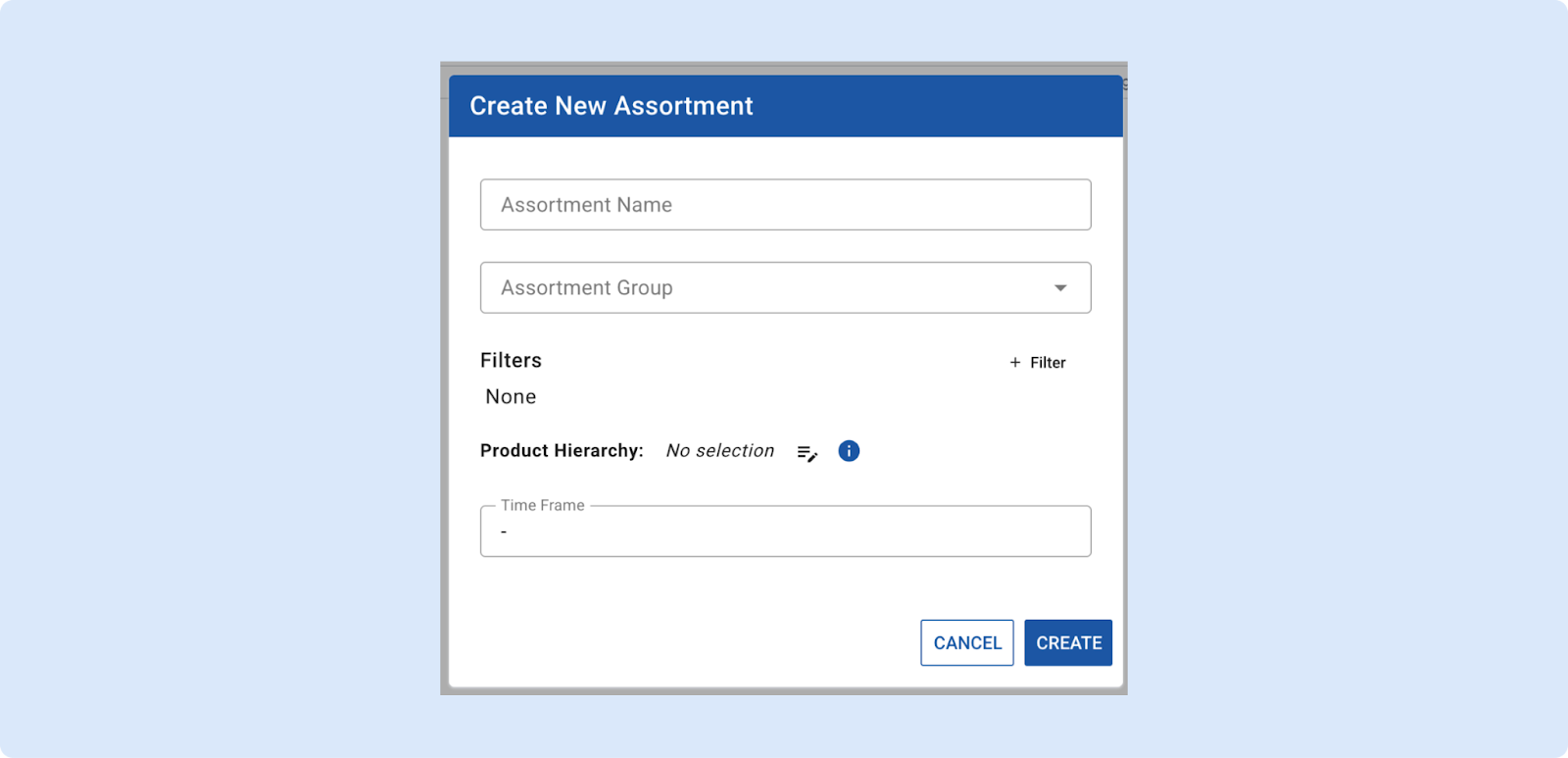
We’ve enhanced the Assortment Creation experience by adding a Product Hierarchy Selector directly to the creation modal. Using the same familiar selector from Filters, this optional field allows you to quickly narrow down products by hierarchy, helping you focus on what matters most. While not required, selecting a hierarchy can improve performance in Assortment Plan overall and deliver faster, more relevant results, making assortment creation more efficient. You can use Product Hierarchy selector and standard filtering combined for your assortments.
👉 Read more about Assortment Creation
Multi Plan and Scenario Settings for Assortment Plan
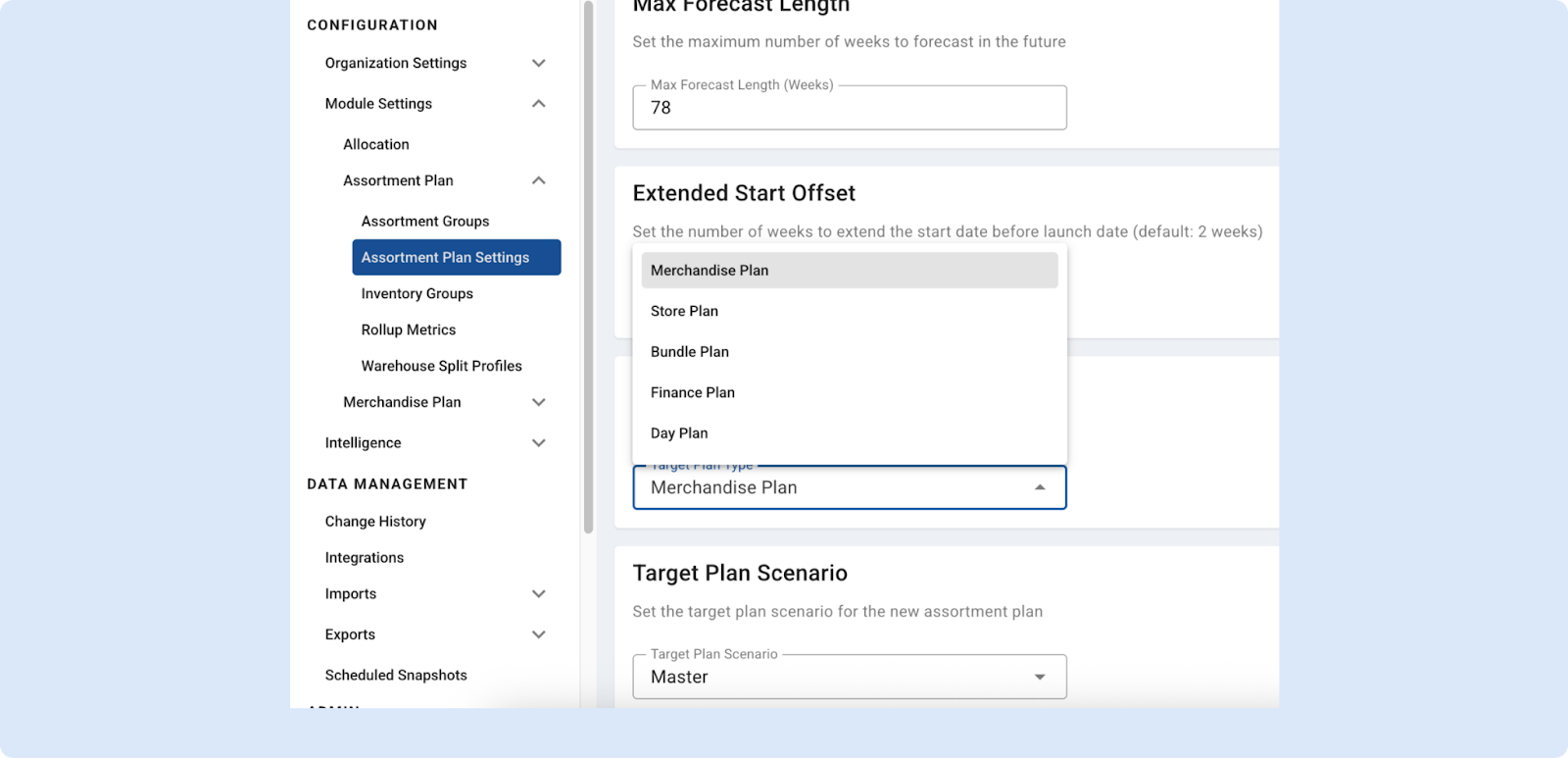
Assortment Plan Settings are now available to help you reconcile bottom-up Assortment Plans with your top-down Multi Plan targets.
In Settings → Assortment Plan → Assortment Plan Settings, you can pick a Target Plan Type and Target Plan Scenario (defaulting to your first Multi Plan and its default, typically the Master Scenario). Once selected and saved, your choices apply system-wide, so key components consistently reference the same baseline:
- Reconciliation in AP Reporting compares against your chosen target,
- Plan Metrics in both AP Summary View and AP Rollup align, and
- AP Rationalization calculates Hindsight Metrics relative to the same target plan and scenario.
👉 Read more about Multi Plan and Scenario Settings
Allocation
Improved Row Status for Allocation Strategy
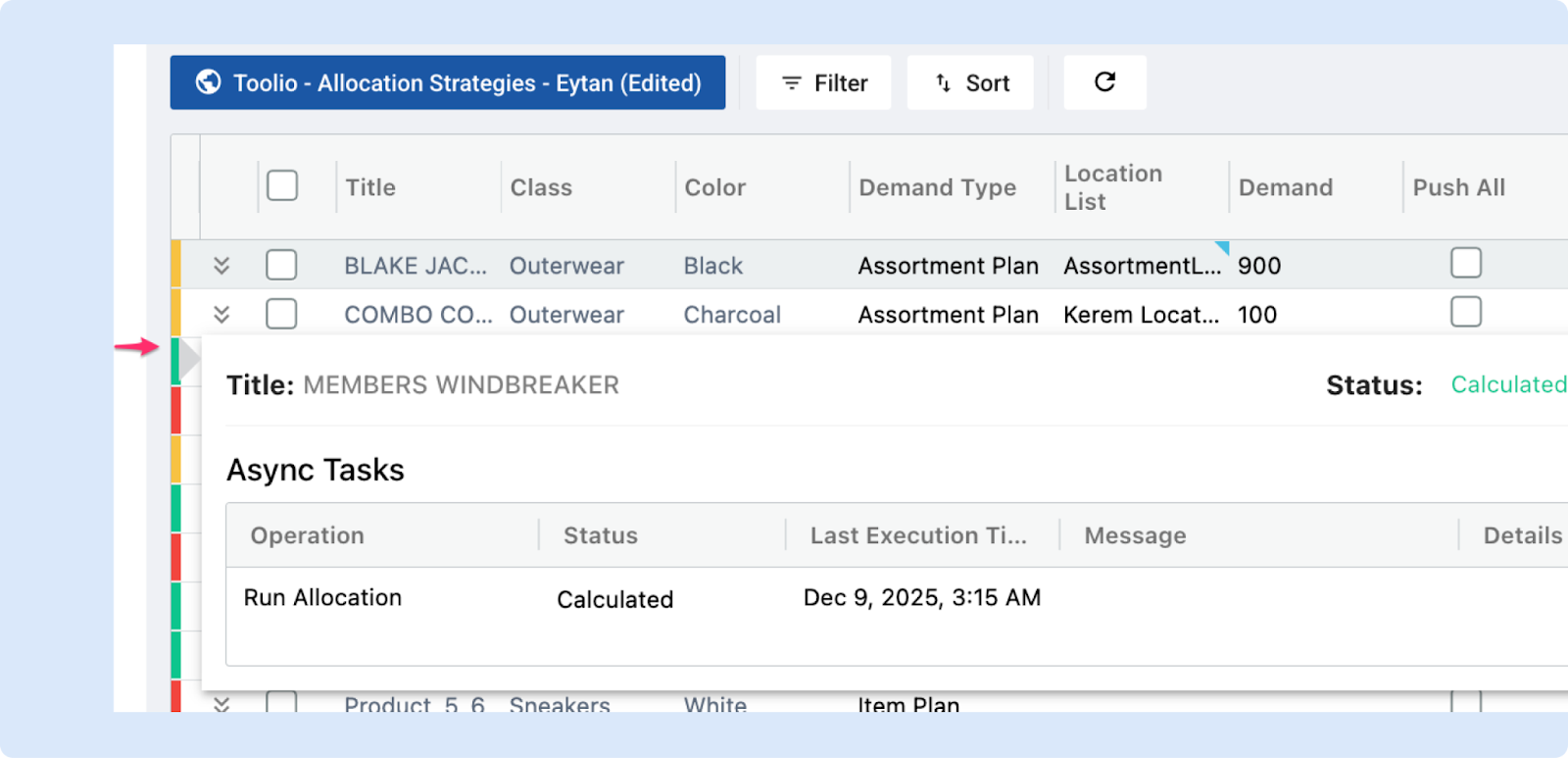
We’ve made several enhancements to make Allocation Strategy statuses clearer and more consistent:
- Updated Row Status dialog to align with the behavior and formatting used in Assortment Plan.
- Color-coded status indicators now allow you to understand each allocation strategy’s state at a glance.
- Clickable Row Status provides detailed insights, including when the strategy was run, its current status, and any diagnostic messages.
These improvements make it faster and easier to monitor and troubleshoot your allocation workflows.
General Platform Updates
Product Hierarchy as an attribute and filtered Option Lists
We’ve enhanced Product Hierarchy to work more flexibly as both a smart input and a system-driven output. Users can now select a single Product Hierarchy value to automatically populate related attributes like Division, Department, and Class, or define those attributes directly and let the system resolve the valid hierarchy behind the scenes. Product Hierarchy Attributes dynamically filter to only valid, user-defined hierarchy nodes, ensuring that selections always make sense together. For example, choosing Division: Women and Class: Bags will automatically narrow Department options to only compatible values like Accessories, reducing errors and keeping product data clean and consistent.
👉 Read more about product hierarchy attribute
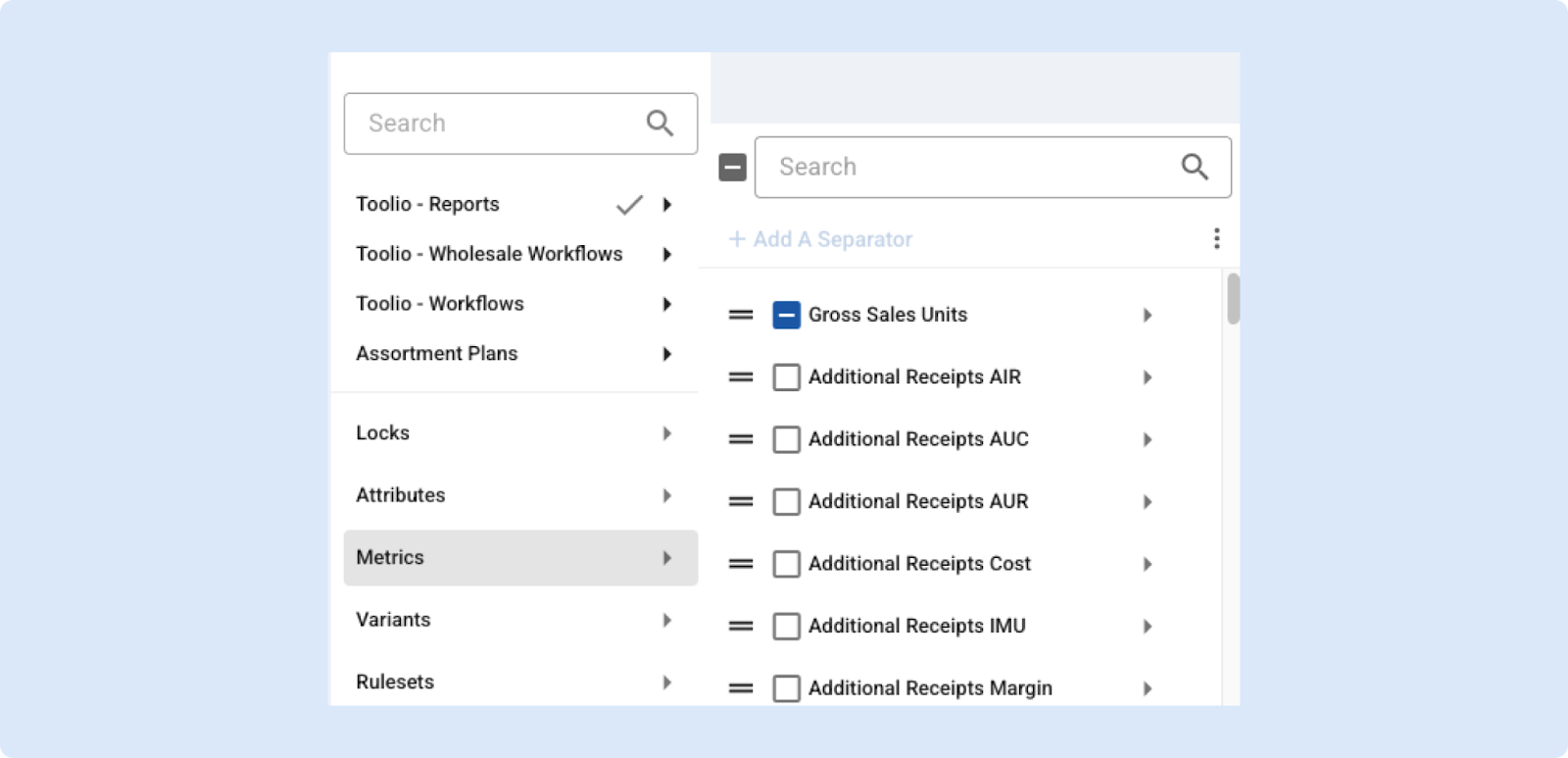
Improved Performance on Metric Selector
The metric selector has been revamped to deliver noticeably faster, more responsive interactions — updating a single metric now only affects that item instead of refreshing the entire list. Improvement will be especially noticeable on Windows users, where slowness was more noticeable.
Customers will see reduced UI lag on large metric lists and a smoother, snappier experience when browsing and updating metrics.
Need Help? We're Here for You!
Our support team is always ready to assist you. If you have any questions about these updates or need help getting started with new features, don’t hesitate to reach out!
Is there a feature you think would be a great addition? Let us know here!


