









General Platform Updates
A New Way to Interact With Your Toolio Data: The Toolio MCP Server
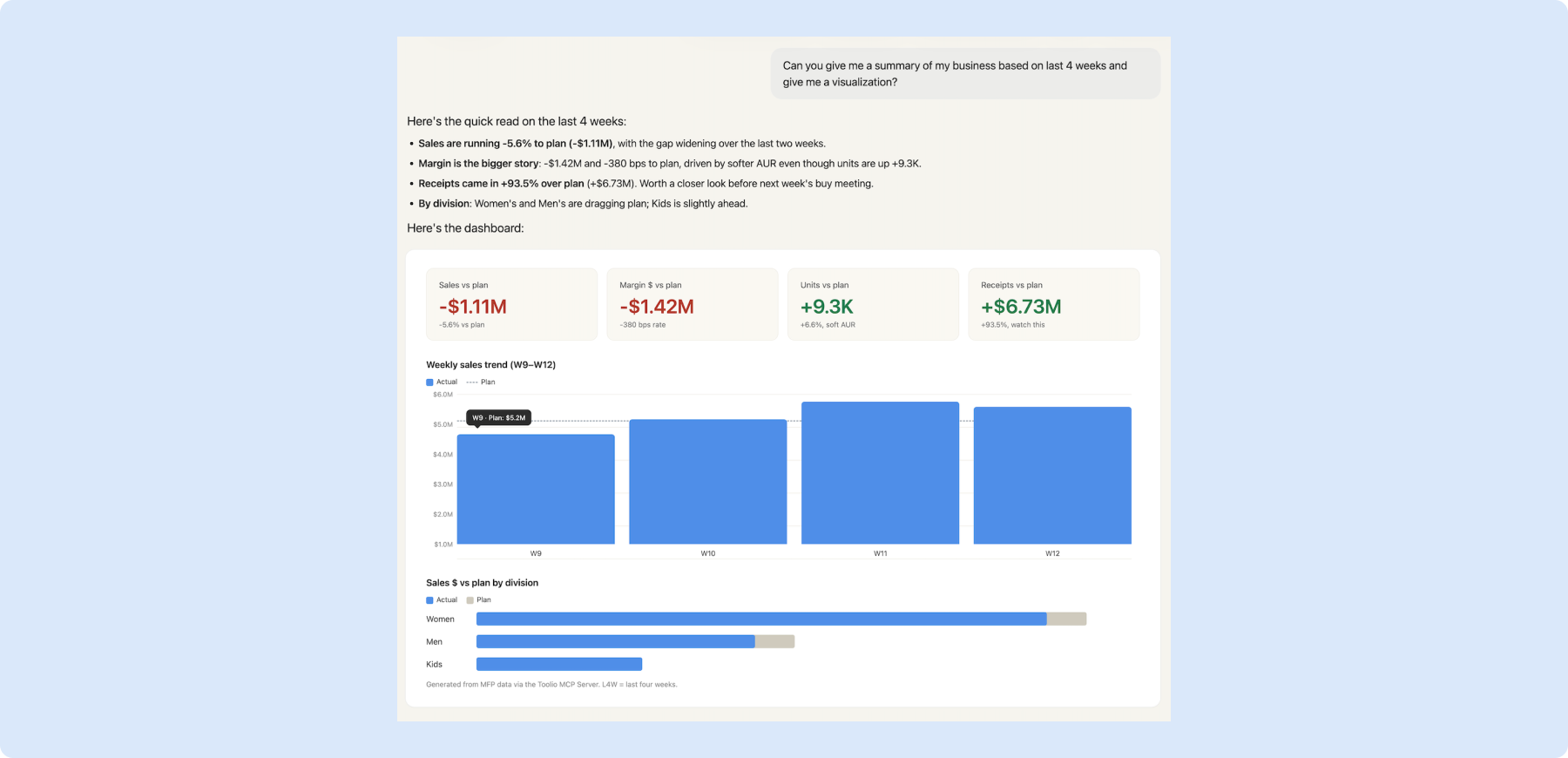
The Toolio MCP Server is here, and it changes how your team gets answers out of Toolio.
Plug Toolio into an AI assistant like Claude, ask a question in plain English, and get real analysis back in minutes: trends, callouts, and recommendations included.
No more chasing the right view, building a one-off report, or waiting on someone else to pull the numbers.
Why this is a big deal:
Customers are already moving real planning workflows into Claude. MCP meets your planners where they’re actually working instead of pulling them back into yet another UI.
It also lets you blend Toolio data with the other MCP servers you use (finance, marketing, supply chain), so the answer to “why did margin slip last week?” can pull from every system that matters, in one conversation.
What it covers:
Read-only access to the core Toolio planning modules.
- Merchandise Plan (financial data aggregated by department, category, class, or location)
- Assortment Plan (metrics at choice and cluster levels), Item Plan (SKU-level performance analysis)
- Allocation (inventory distribution across locations).
How to get started:
Want to try it now? Head to our help center guide and work with your organization’s admin to enable the connector.
Want to learn more first?
Reach out to your Customer Success team!
👉 Read more about the MCP Server
Merchandise Planning
📋 Deep Copy & Paste in Merchandise Planning
What’s new
Regular copy/paste in MFP works at the top level:you copy a parent value, paste it onto another parent, and the value spreads down based on the destination’s existing child penetration.
With deep copy/paste, you copy the actual values at every level of the hierarchy, including the children, and paste them onto the destination so that the destination takes on the source’s penetration instead of its own.
Example:
In a Division > Department > Class hierarchy, if you copy a Division and regular paste it onto another Division, the destination keeps its own class-level penetrations and the new Division total spreads across them.
If you deep copy that Division and deep paste, the destination’s classes take on the source’s class-level penetrations instead.
What you can do
Deep copy a hierarchy - Select a parent row and press Cmd/Ctrl+Shift+C to copy that row plus the values of every descendant underneath it.
Deep paste a hierarchy - Pick a target parent and press Cmd/Ctrl+Shift+V to apply the source’s values, including children, onto the destination. The destination’s penetration ends up matching the source’s.
Use the right-click menu - Right-click in the grid and pick “Advanced copy & paste” if you’d rather use the menu than the shortcut.
Paste across columns - Paste onto any week or column. The values shift relative to where you paste, just like normal copy/paste.
👉 Read more about Deep Copy & Paste in MP
Why it helps
- Carry a source’s child penetration into the destination instead of having the destination re-spread based on its own existing penetration.
- Reuse a fully built-out plan across departments, categories, or classes without losing the underlying mix.
- Keep regular copy/paste exactly the way it is for everyday top-level edits.
Assortment Planning
📈 Net Sales Units for ROS Models
What’s new
You can now plan ROS directly to Net Sales Units in the Assortment Plan, alongside Gross Sales Units and Demand Units.
What you can do
- Pick Net Sales Units in the ROS Model dialog
- Choose “Net Sales Units” from the Metric to Use dropdown on any ROS Model.
- Skip planning a return profile - If you’re planning to net, you no longer need to plan a return profile to back into net from gross.
When it’s useful
For businesses that plan to net rather than to gross.
👉 Read more about Net Sales for ROS
📬 Scheduled Report Deliveries for Assortment Reporting
What’s new
You can now email Assortment Reporting on a schedule, or send it once on demand, from both the Reporting Gallery view and the Reporting Grid view.
What you can do
Schedule deliveries from the Reporting Gallery view
- Set up recurring email deliveries of the gallery as a PDF. Send the gallery now
- Use the new SEND NOW button to email the gallery once, on demand, without creating a schedule
Schedule deliveries from the Reporting Grid view
- Set up recurring email deliveries of the grid in PDF, CSV, or XLS.
Manage everything in one place
- All schedules show up under Settings -> Scheduled Report Deliveries alongside your existing ones.
Why it helps
- Get Assortment Reporting in front of merchants, leadership, and cross-functional partners who don’t live in Toolio.
- Pick the right format for the audience: PDF for a polished read, CSV or XLS for downstream analysis.
- SEND NOW covers the “just email this to the team now” case without leaving a schedule behind to clean up.
👉 Read more about Scheduled Report Deliveries in AP
Confirmed PO Matching with RPO
RPOs exported from Approved status now stay on your on-order plan until the actual PO is imported and matched - closing the projection gap that used to exist while orders were being processed outside of Toolio.
Note: Exporting from Approved requires a feature flag - contact your Toolio team to enable it. RPOs advanced to Issued manually still drop off the plan immediately, as before.
What you can do
- Export from Approved to hold on-order values - Your AP projections stay intact while the order is in flight. Once the actual PO is imported, Toolio matches it to the originating RPO, moves it to Confirmed, and swaps it out of the plan automatically.
- Let Toolio do the matching - Toolio links incoming POs to their originating RPO by RPO number. No manual reconciliation needed. Just ensure recommended_purchase_order_number is included when importing your PO data.
- Trace the full order lifecycle - RPOs now follow a clear path: Draft -> Approved -> Exported -> Confirmed.
👉 Read more about Confirmed PO Matching
Allocation
⚙️ Update Allocation Strategies in your AI Client
What’s new
Your AI Client can now make changes to your allocation strategies, not just answer questions about them.
Tell it what you want to update and it will do the work for you - including kicking off a re-run and letting you know when it’s done.
What you can do
- Surface exceptions and act on recommendations - Ask your AI Client to find strategies that look off (failed runs, stale overrides, mismatched safety stock, low sell-through) and propose specific updates.
- Review the recommendations, then tell it to go execute them - no swivel-chairing between analysis and action.
- Update safety stock or presentation profile in mass - Ask your AI Client to bump safety stock days or change the presentation profile across a whole set of strategies in one go, instead of editing them one by one.
- Set or remove allocation strategy overrides - Apply per-location overrides across many strategies at once, or clear them out when they’re no longer needed.
- Re-run allocation strategies - Once your changes are in, ask your AI Client to re-run the affected strategies so the new recommendations reflect your updates.
- Track status of a run - Check in on a queued allocation run anytime and your AI Client will tell you whether it’s still working, finished, or hit a problem.
- Preview before you commit - Ask “what would change if I do X?” and see the diff before anything is actually written.
Why it helps
- Move from “find the problem” to “fix the problem” in one conversation, instead of jumping between dashboards, spreadsheets, and the planning UI.
- Skip the click-by-click work of tuning strategies row by row.
- React faster to supply changes, seasonal pivots, or new store openings by adjusting many strategies in one conversation.
- Stay in control - preview changes first and watch run status, all without leaving the chat.
👉 Read more about Updating Allocation Strategies
Allocation Strategy Imports
What’s new
You can now import a file to create new allocation strategies in bulk - including store assignments and start and end dates.
Note: the import creates new strategies only and will not update any that already exist in Toolio.
What you can do
- Create strategies from a file - Each row represents a style-color and store combination. Use this sample file as a reference for the required format and fields.
- Import start and end dates - Dates are applied directly when the strategy is created, so your allocation window is set from the start.
- Define store inclusion per style-color - Stores listed in the file are included; any store not listed is excluded.
- Override in the UI when needed - Start and end dates can still be adjusted per strategy or per location in Toolio after import.
Why it helps
- Eliminates manual strategy setup for large assortments - import once and your strategies are ready.
- Allocators stay in control: the import is the starting point, and everything can be adjusted in the UI after creation.
👉 Read more about Allocation Strategy Imports
🏷️ Custom Attributes on Allocation Strategies
What’s new
You can now add custom attributes to your Allocation Strategies, the same way you do on Choices.
Tag strategies with the metadata that matters to your team, and have it show up right in the grid.
What you can do
- Add custom columns to Allocation Strategies - Define attributes like strategy type, owner, channel, season, or any other tag your team uses, and see them as columns on each strategy.
- Edit attribute values inline - Click into the custom attribute column and update the value directly. Changes save immediately and are available everywhere the strategy is used.
- Filter and sort by your own attributes - Use custom attribute columns to slice your strategy list the way your team actually thinks about allocation.
- Keep Allocation Strategy and Choice consistent - Because attributes now work the same on both, the mental model is one concept across the app.
Why it helps
- Organize strategies around the dimensions your team cares about, not just the ones Toolio ships out of the box.
- Reuse the attribute workflow you already know from Choice, with no extra training.
- Unlock downstream use cases (grouping, reporting, automation) that depend on tagging strategies with your own metadata.
👉 Read more about Custom Attribues in Allocation
Need Help? We're Here for You!
Our support team is always ready to assist you. If you have any questions about these updates or need help getting started with new features, don’t hesitate to reach out!
Is there a feature you think would be a great addition? Let us know here!


