









Tooli Updates
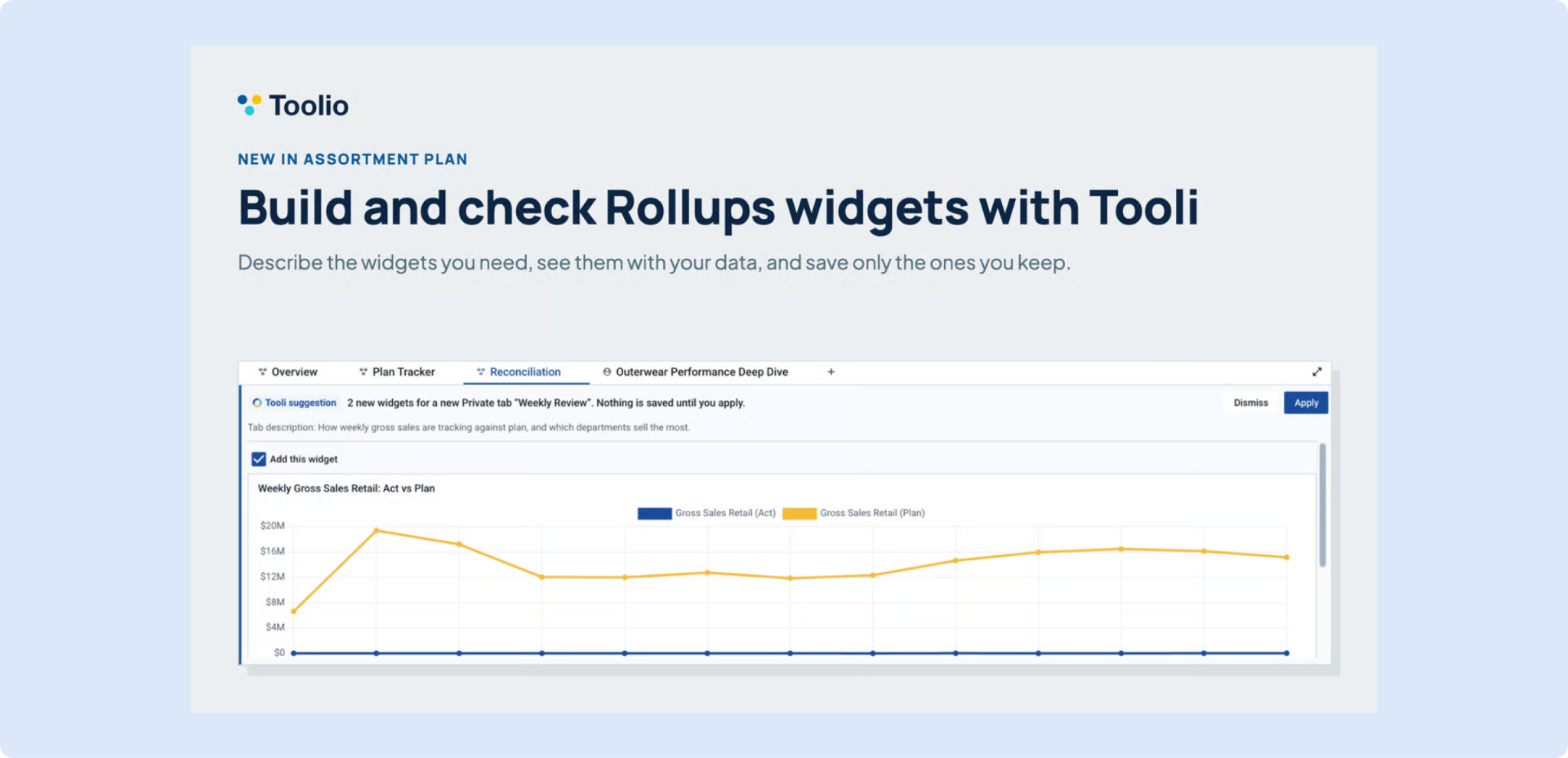
✨ Build and Check Rollups Widgets with Tooli
Tooli now works with the Rollups panel in Assortment Plan. Ask what a widget shows and Tooli answers from the numbers on the card, ask it to check a tab and it flags dashes, empty variants and unusually large changes, and it can add or change widgets on your own tabs once you approve. Building and trusting your Rollups views takes far less effort.
Read more on How Do I Use the Rollups Panel in Assortment Plan?
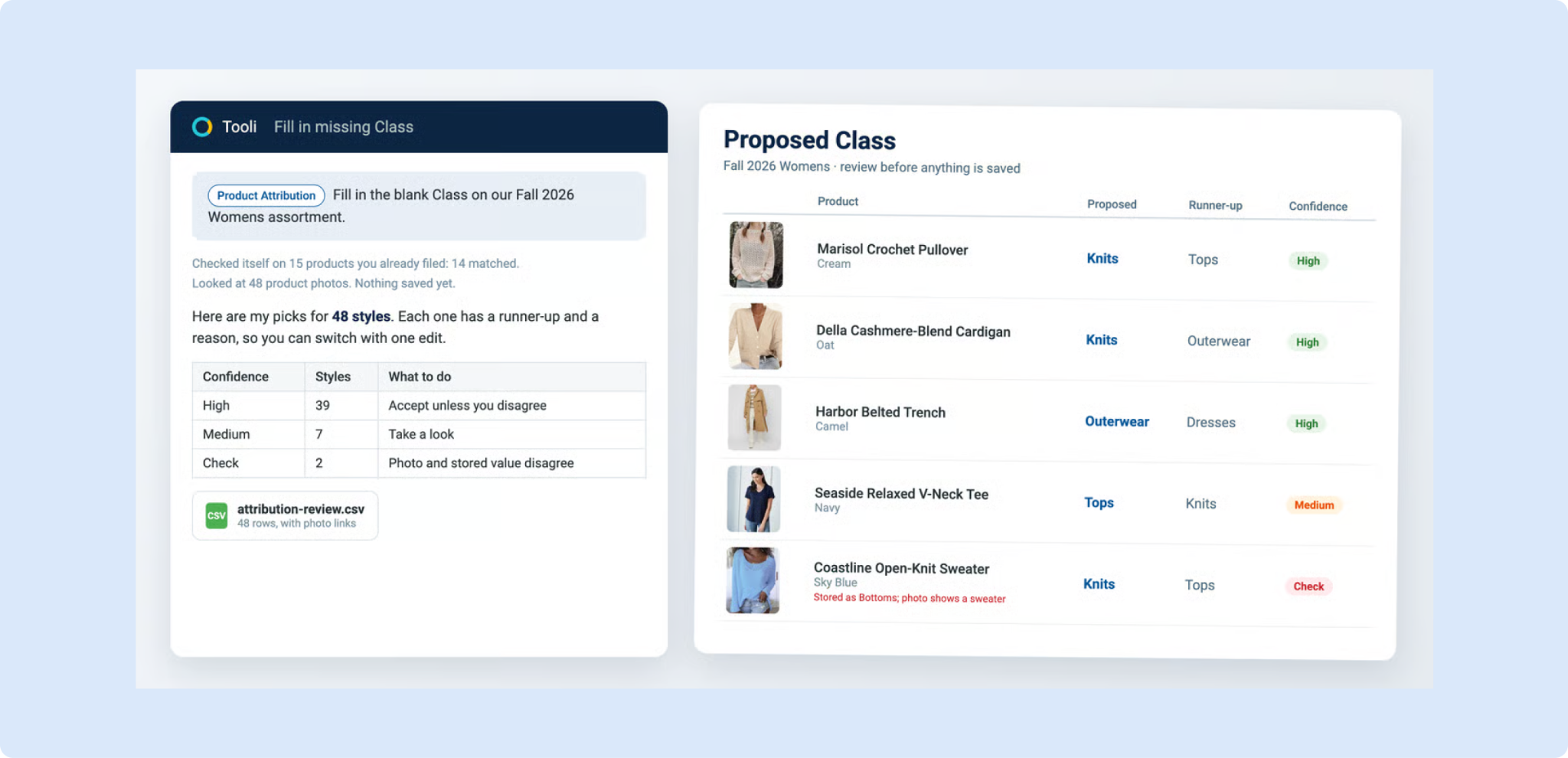
🏷️ Fill In Missing Product Attributes with Tooli
Tooli can now fill in blank product attributes such as class, silhouette or color family. Using the Product Attribution skill, it reports which attributes are missing and on how many products, then proposes values based on each product’s photo, name and how similar products are filed, and you review every proposal before anything is saved. Cleaner attribute data means better grouping and reporting across Toolio.
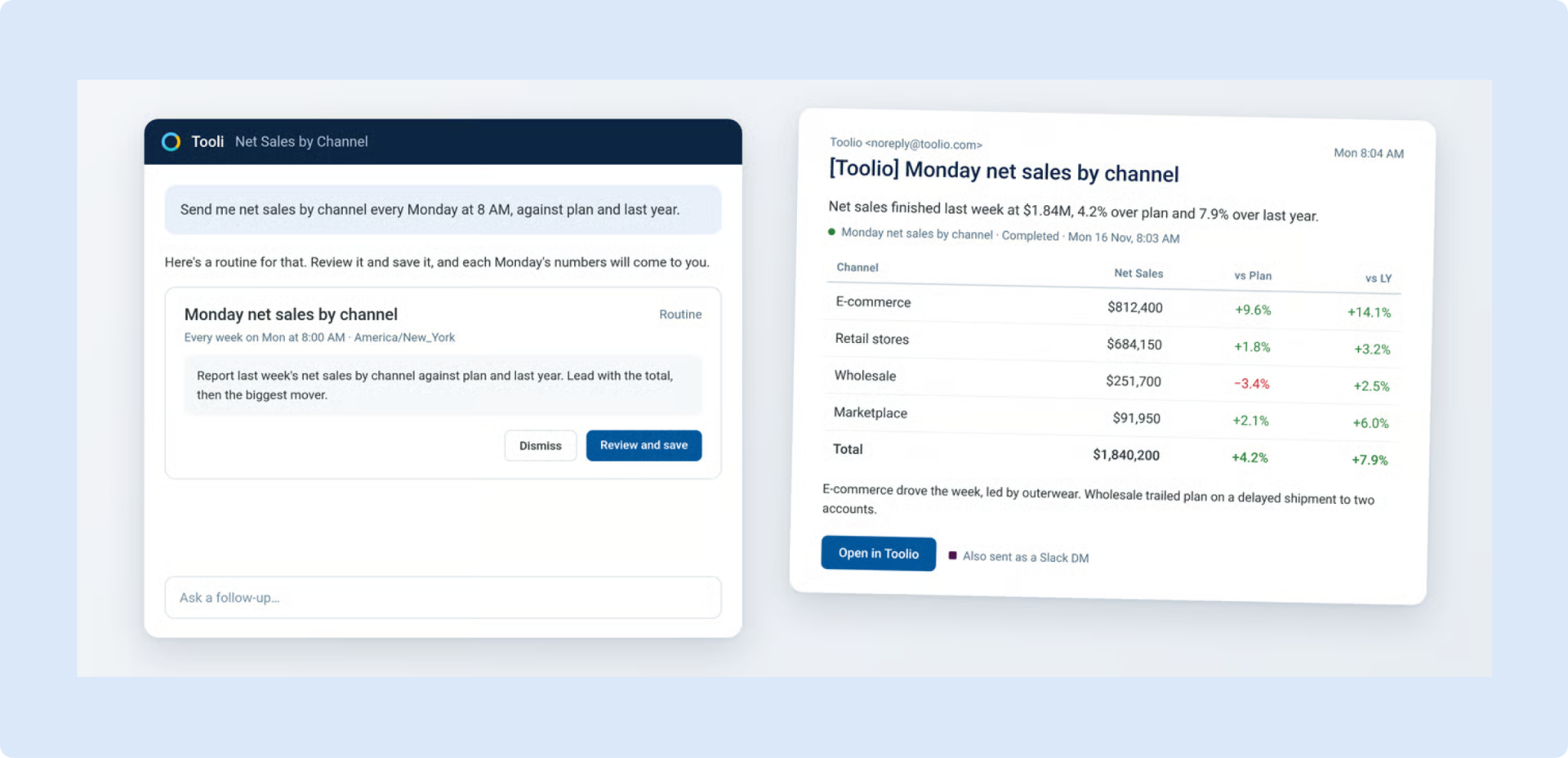
🔁 Routines in Tooli
Tooli can now run recurring reports on a schedule. Ask for something like “net sales by channel every Monday at 8 AM,” review the routine card, and choose delivery in Tooli, by email or as a Slack DM; you can also add subscribers who pick their own channel. Regular reporting now shows up on its own instead of being re-requested each week.
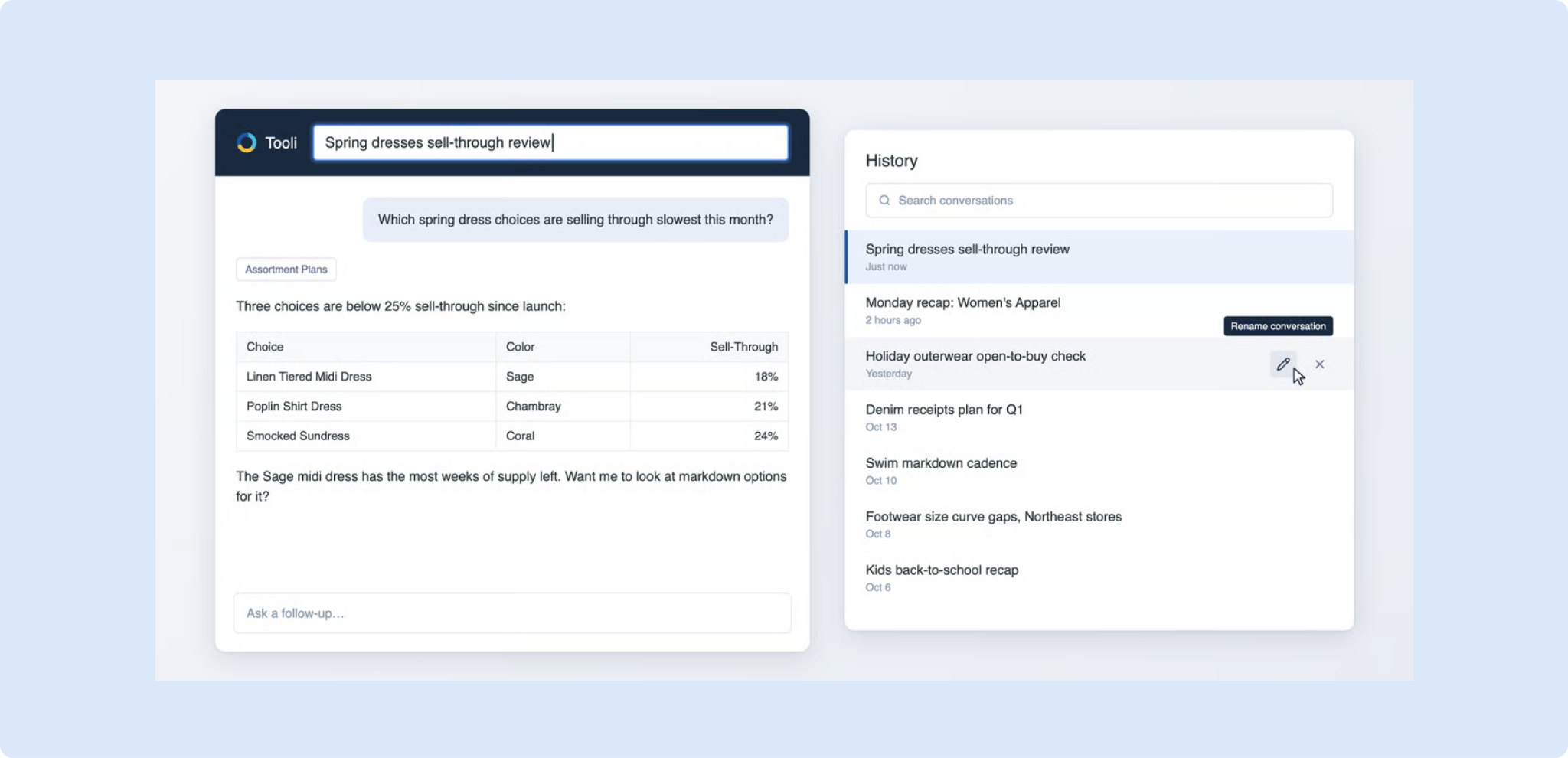
✏️ Rename Your Tooli Conversations
You can now rename a Tooli conversation from its header, in the side panel or fullscreen, or from the History list with the pencil icon. The new title shows in the header and your conversation history. Finding the thread you need later is much easier.
✅ Approve, Cancel, and Optimize Purchase Orders with Tooli
Tooli can now act on whole Recommended Purchase Orders. Ask it to approve several POs at once, cancel, restore or delete them, update PO fields, or optimize packs, and it tells you which POs it skipped and why. Routine PO housekeeping becomes a single request instead of many clicks.
Read more in Recommended Purchase Orders – Reviewing a PO
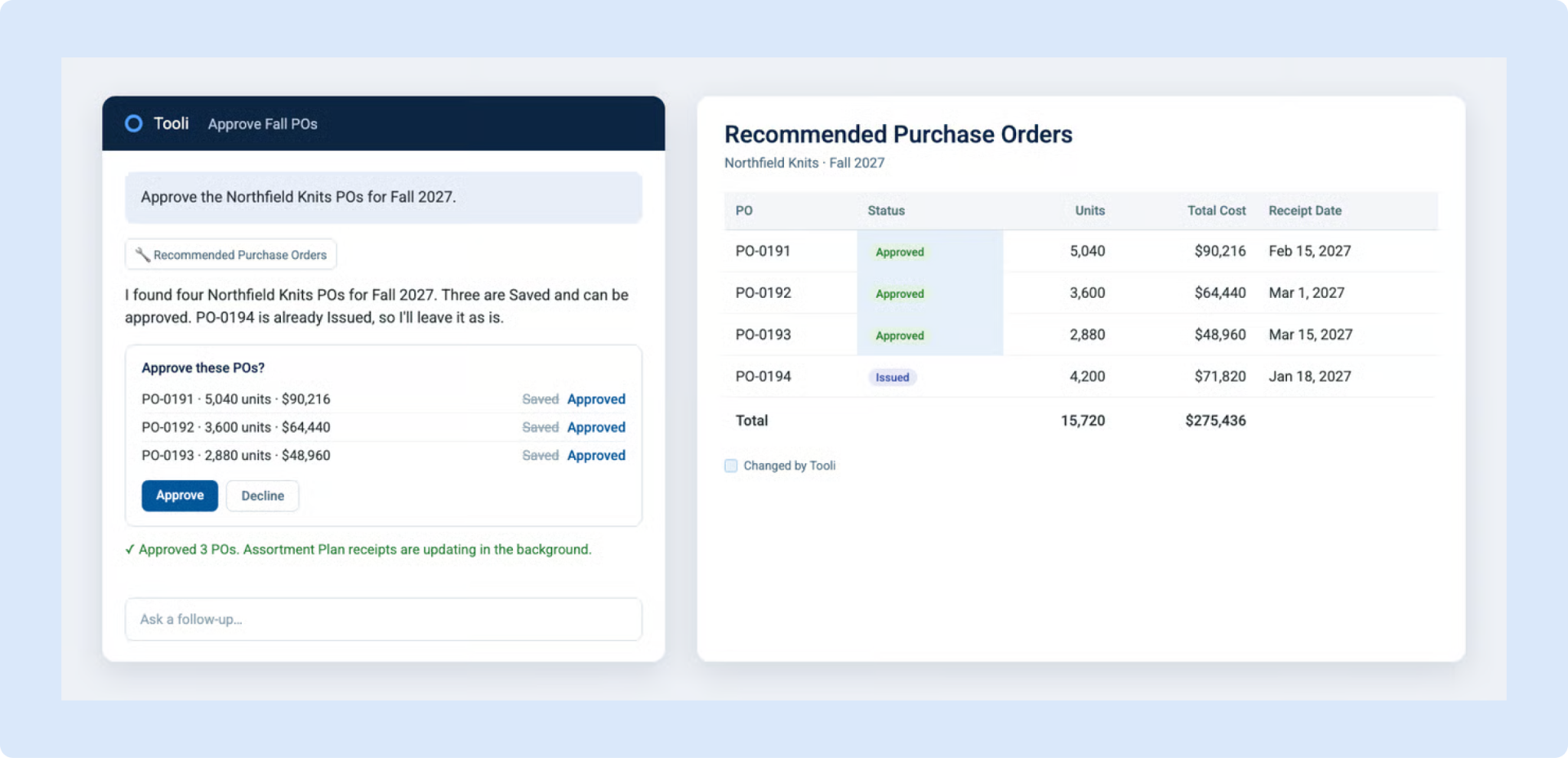
🧾 Read and Edit Recommended Purchase Orders with Tooli
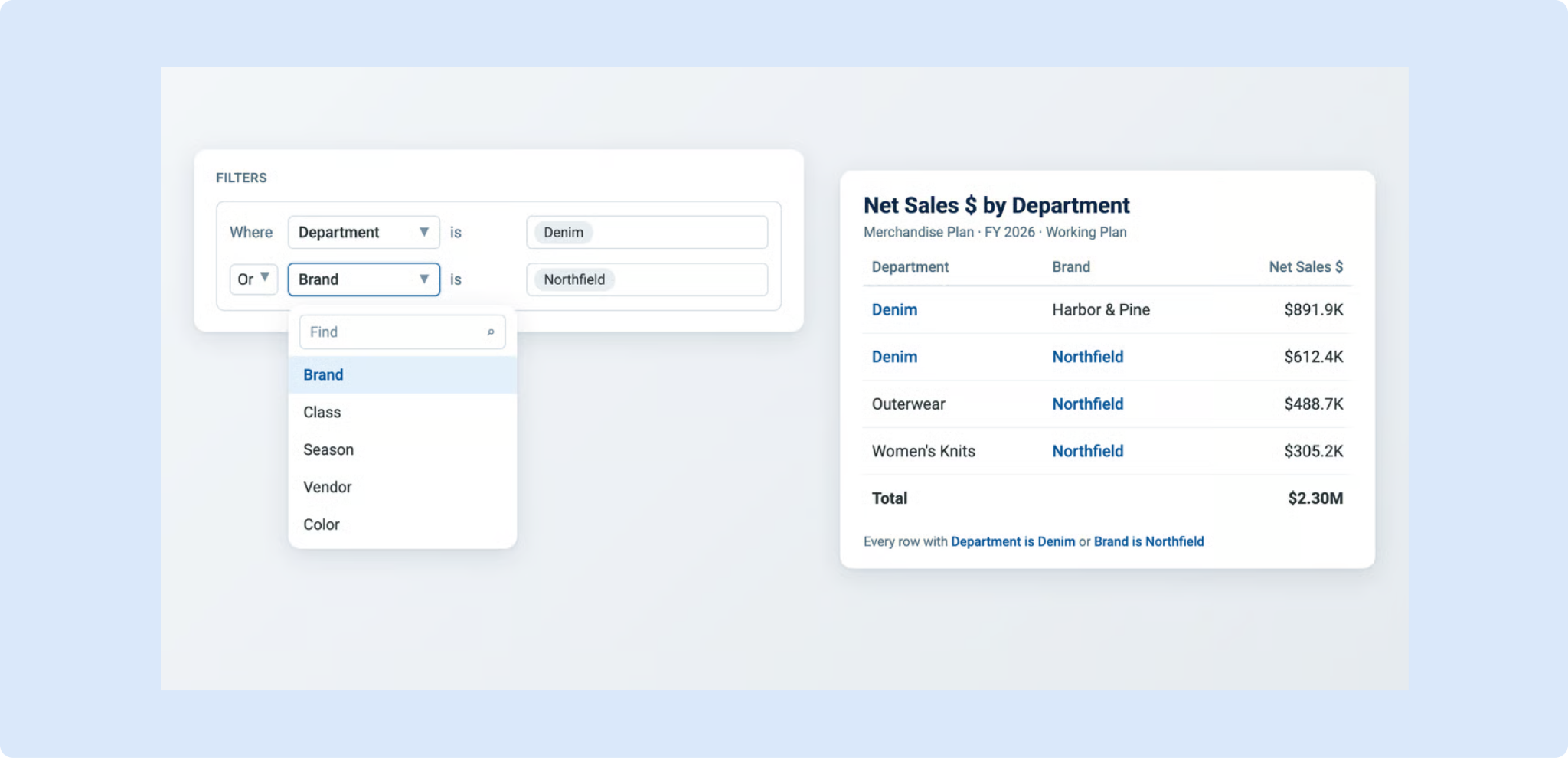
Tooli now works with your Recommended Purchase Orders. Ask it to list POs with filters and sorting, open a single PO, explain what you are ordering including pack rows, or change PO lines, and it follows the same rules as the PO screen. You can review and adjust orders conversationally without hunting through the grid.
Read more in Recommended Purchase Orders – Reviewing a PO
Merchandise Planning
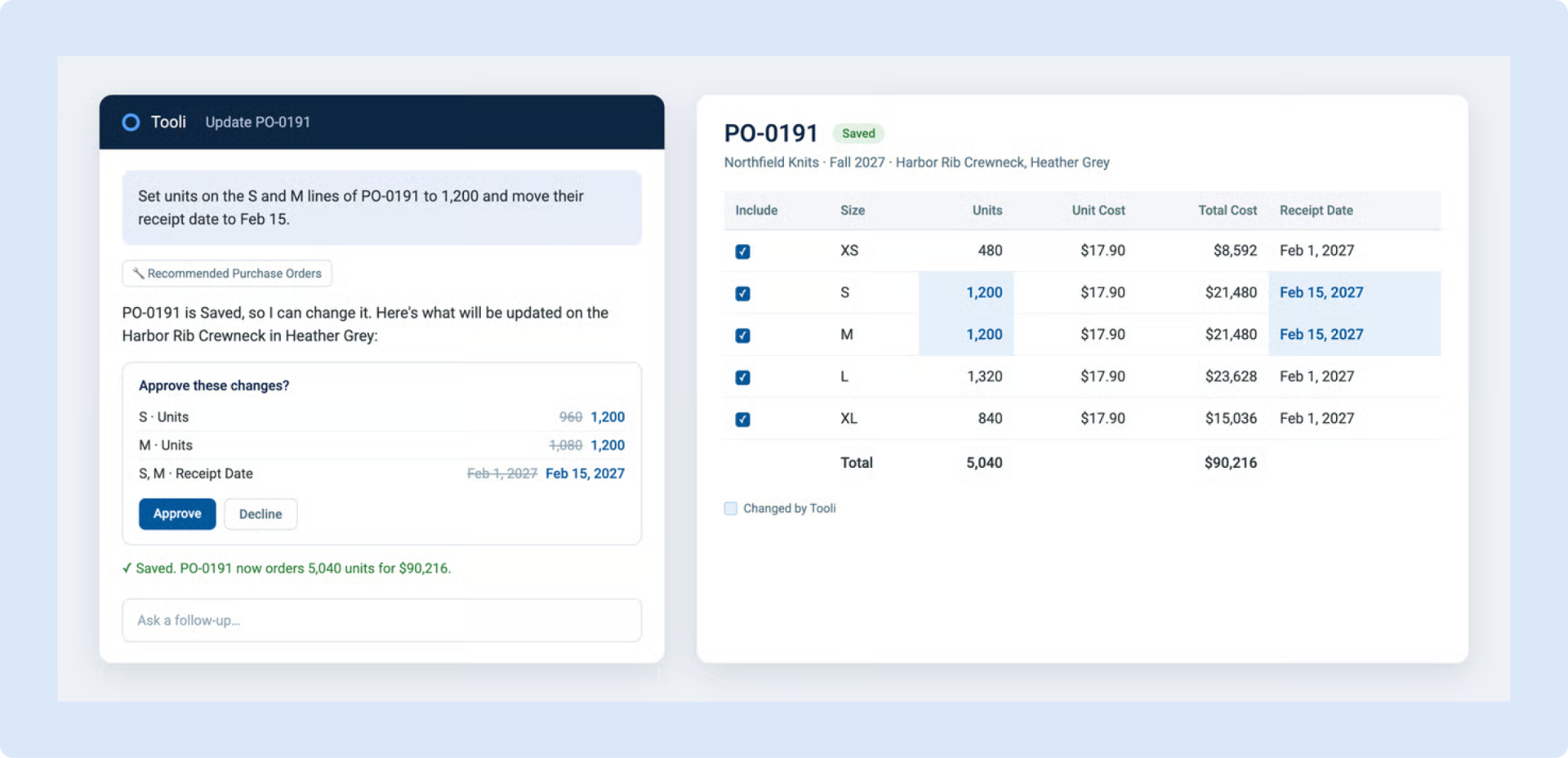
🧹 Hide Empty Rows and Hide a Metric for a Combination in Merchandise Plan
Busy Merchandise Plan views just got easier to read. From Grid Options you can now hide every row of a variant, such as Act or a compare plan, that is empty for the whole date range, and you can hide a metric only where two groups meet, like Receipts for international suppliers in your Store channel. Less clutter means you can focus on the numbers that actually matter.
Read more in Customizing Views
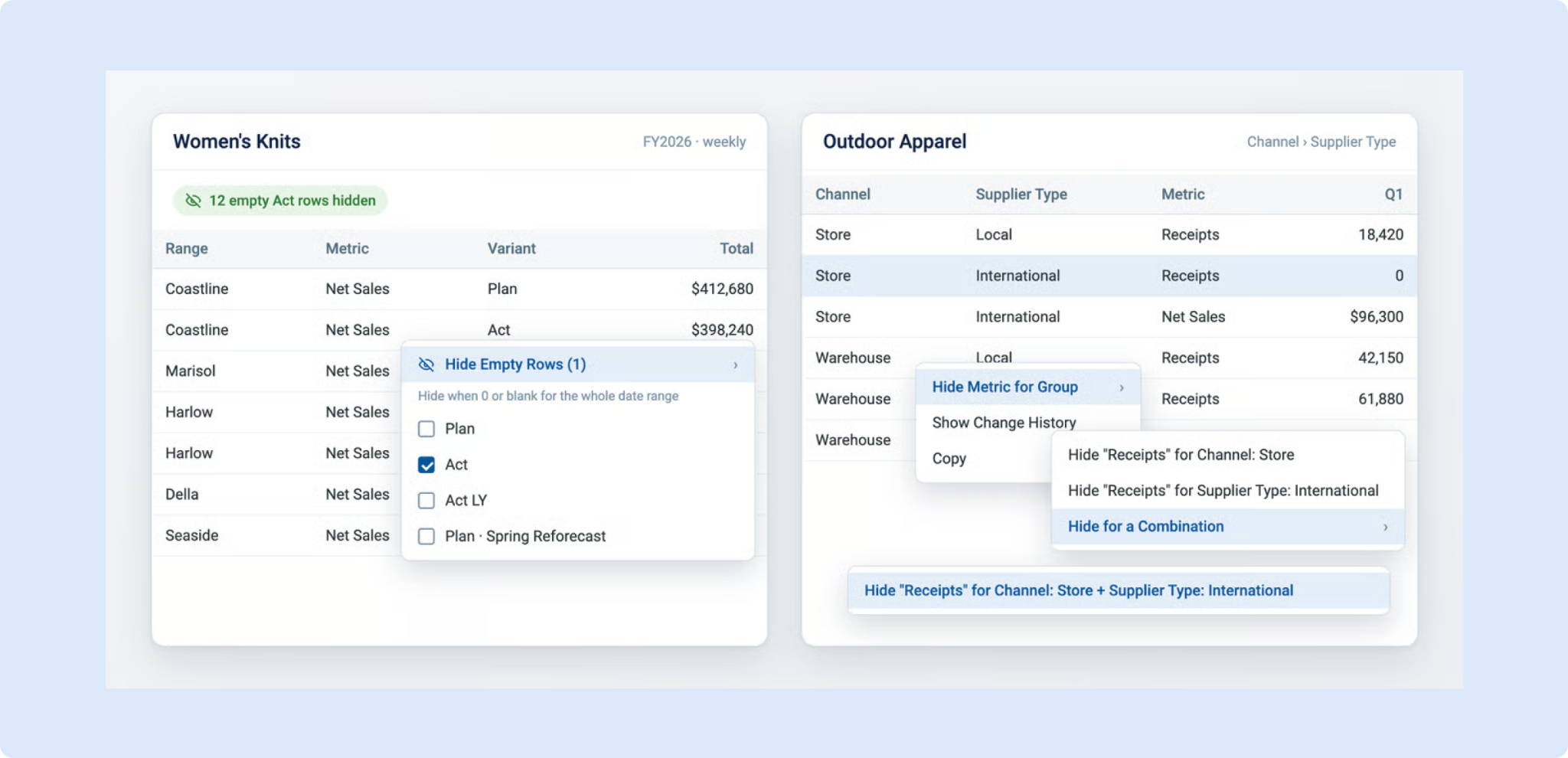
🔀 Combine Different Fields with Or in Merchandise Plan Filters
Each condition in an advanced filter group can now use its own field, so you can show rows where Department is Denim or Brand is Northfield in a single filter. Previously, Or conditions had to share one field. This makes it much easier to build exactly the slice of the plan you want to review.
📅 Format Month, Quarter and Season Rows With Conditional Formatting
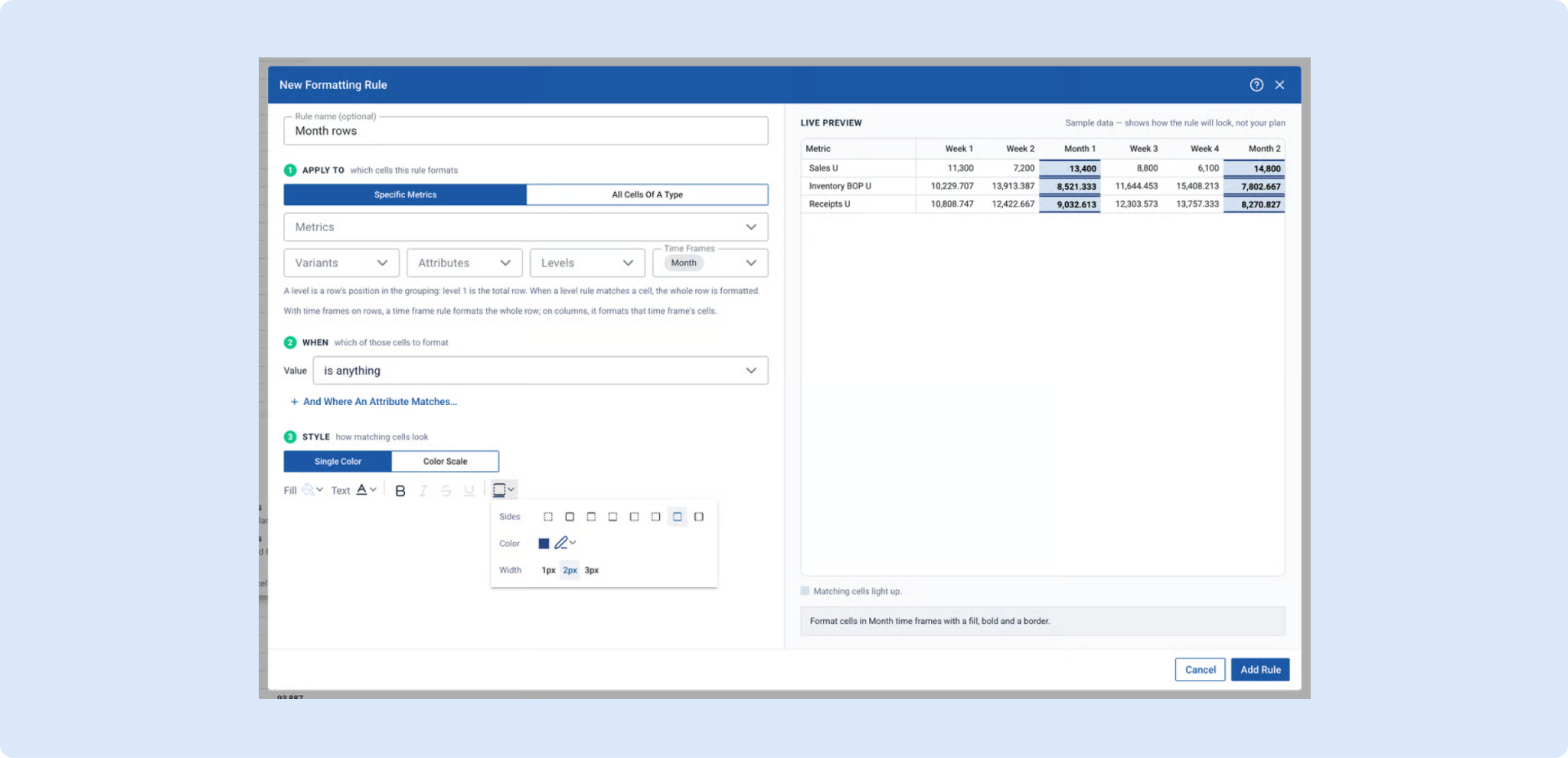
Conditional formatting rules can now target specific time frames. Use the new Time Frames picker to apply a rule to Week, Month, Quarter, Half, Year, Season, Total or a relative frame like Month to Date, so you can underline month rows or shade quarter totals without touching the weeks around them. Plans become faster to scan at the level you care about.
📊 Rollups on the Merchandise Plan Page
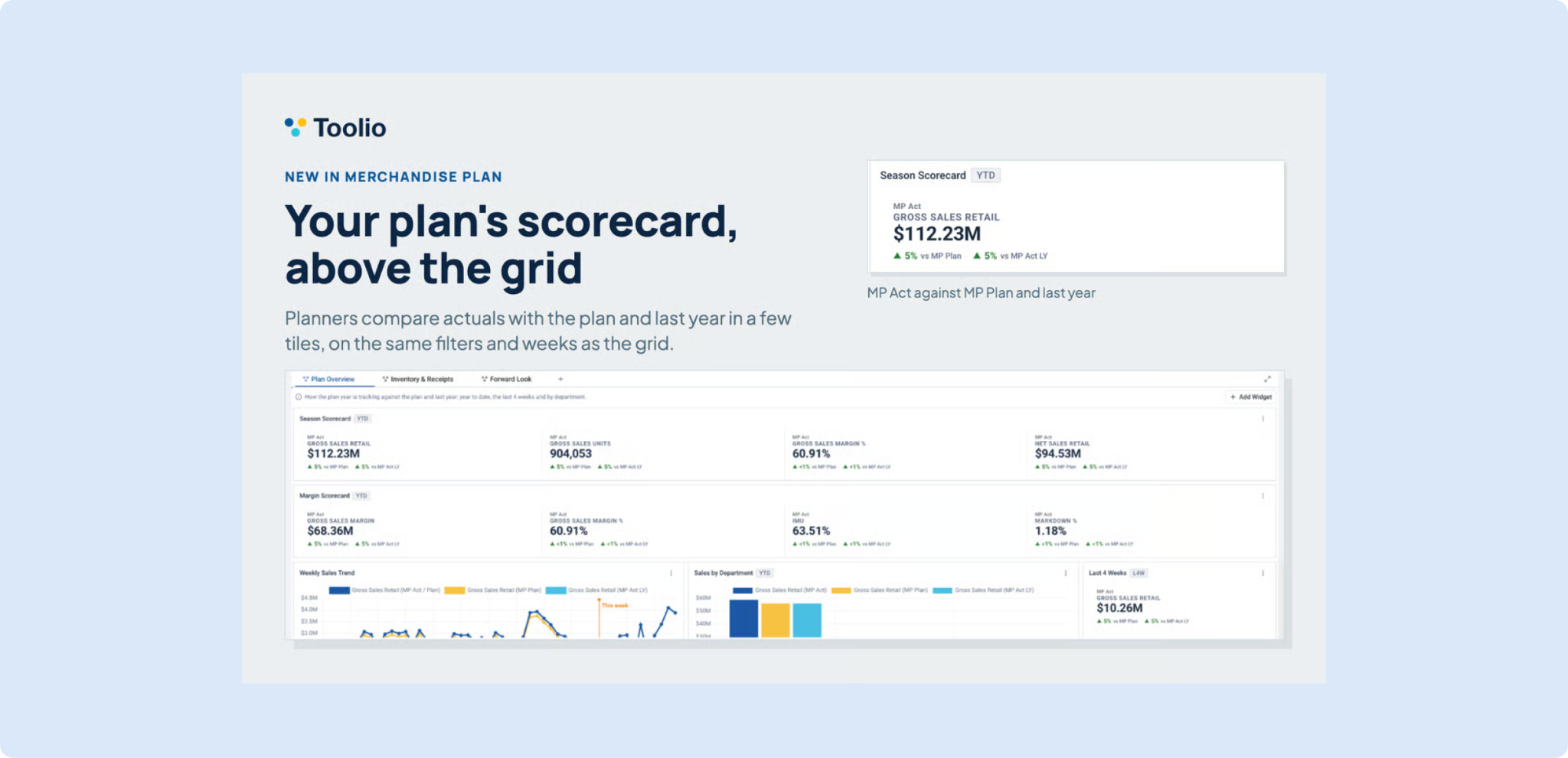
The Rollups panel is now available on the Merchandise Plan page. Click Rollups in the toolbar to see your plan as KPI tiles, tables and charts above the grid, using the same filters, weeks and scenario. Ready-made tabs like Plan Overview, Inventory & Receipts and Forward Look let you compare plan to actuals at a glance, and you can duplicate them to build your own.
Read more in How Do I Use the Rollups Panel in Assortment Plan?
🕘 See Where a Scenario Was Seeded From in Change History
The Change History drawer in Merchandise Plan, Item Plan and Assortment Plan now goes back as far as your history does and opens on the scenario you are planning. A new Details column shows where each seed came from, including source scenario, metrics, weight and date ranges, and save rows list which metrics changed. You can understand how a scenario was built without leaving the plan.
Assortment Planning
📊 Rollups in Every Plan, Distinct Counts and Shareable Tabs
The Rollups panel is now on in every Assortment Plan, with no setting required. Widgets can now count distinct SKUs, choices, styles and locations, against last year and as a share of the total, and a copied plan link opens Rollups on the same tab you were viewing. It is now simpler to see what is in your plan and share the exact view with your team.
Read more in How Do I Use the Rollups Panel in Assortment Plan?
🙈 Ignore Warning and Information Statuses
You can now ignore a Warning or Information row in the Choice Status panel once you have checked it and it is expected. An ignored row counts as passed, so the Choice Plan grid and status chip move on to the next status, and Undo brings it back. Known, expected warnings no longer distract from the ones that need attention.
Read more in Choice Status Panel
🔐 Data Scope in Hindsight & Rationalization
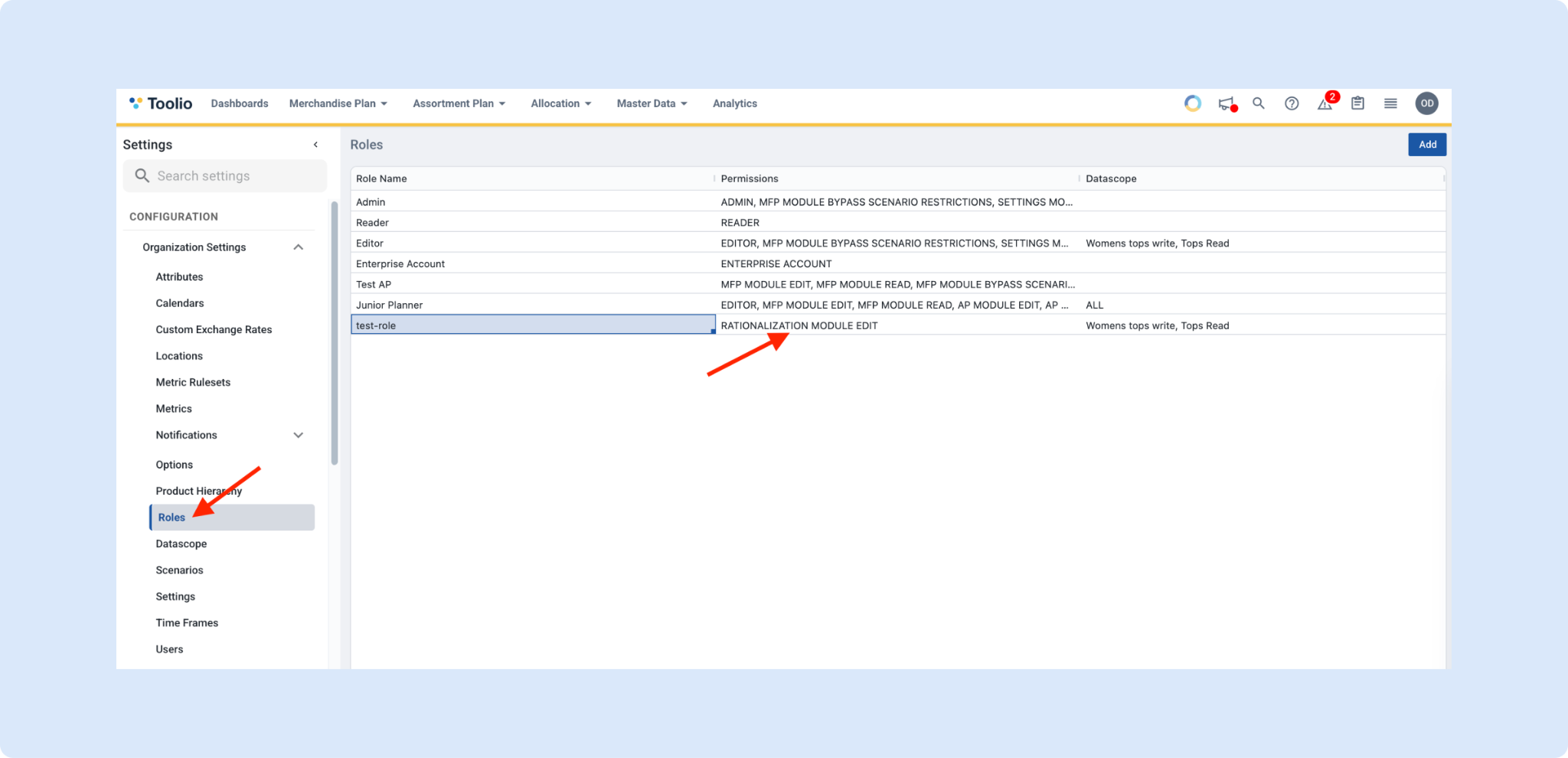
Data Scope and permissions now apply to Rationalization, so each person only sees and works with the part of the product hierarchy they have access to. Admins can add the new Rationalization Module Read or Edit permissions to a role in Settings → Roles. Access now works consistently with Merchandise Plan and Assortment Plan.
Read more in User Management, Roles and Access
🙈 Ignore Statuses on Many Choices at Once
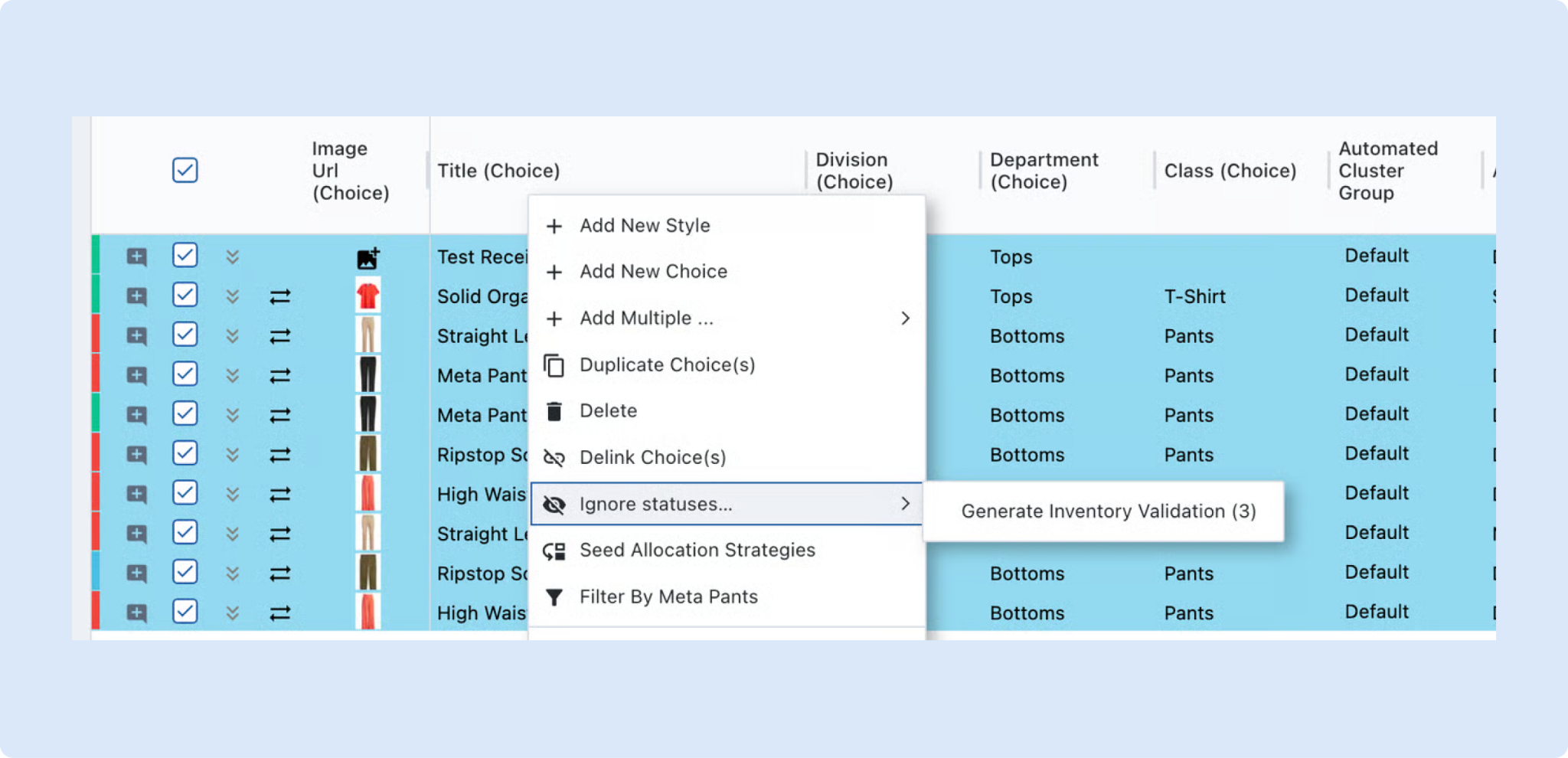
You can now ignore a Warning or Information status across many Choices at once from the Line Building grid. Select Choices, right-click and pick Ignore statuses… to see each check with how many Choices it applies to, and use Undo ignore… to bring them back. Clearing expected warnings across a line no longer means opening every Choice.
Read more in Choice Status Panel
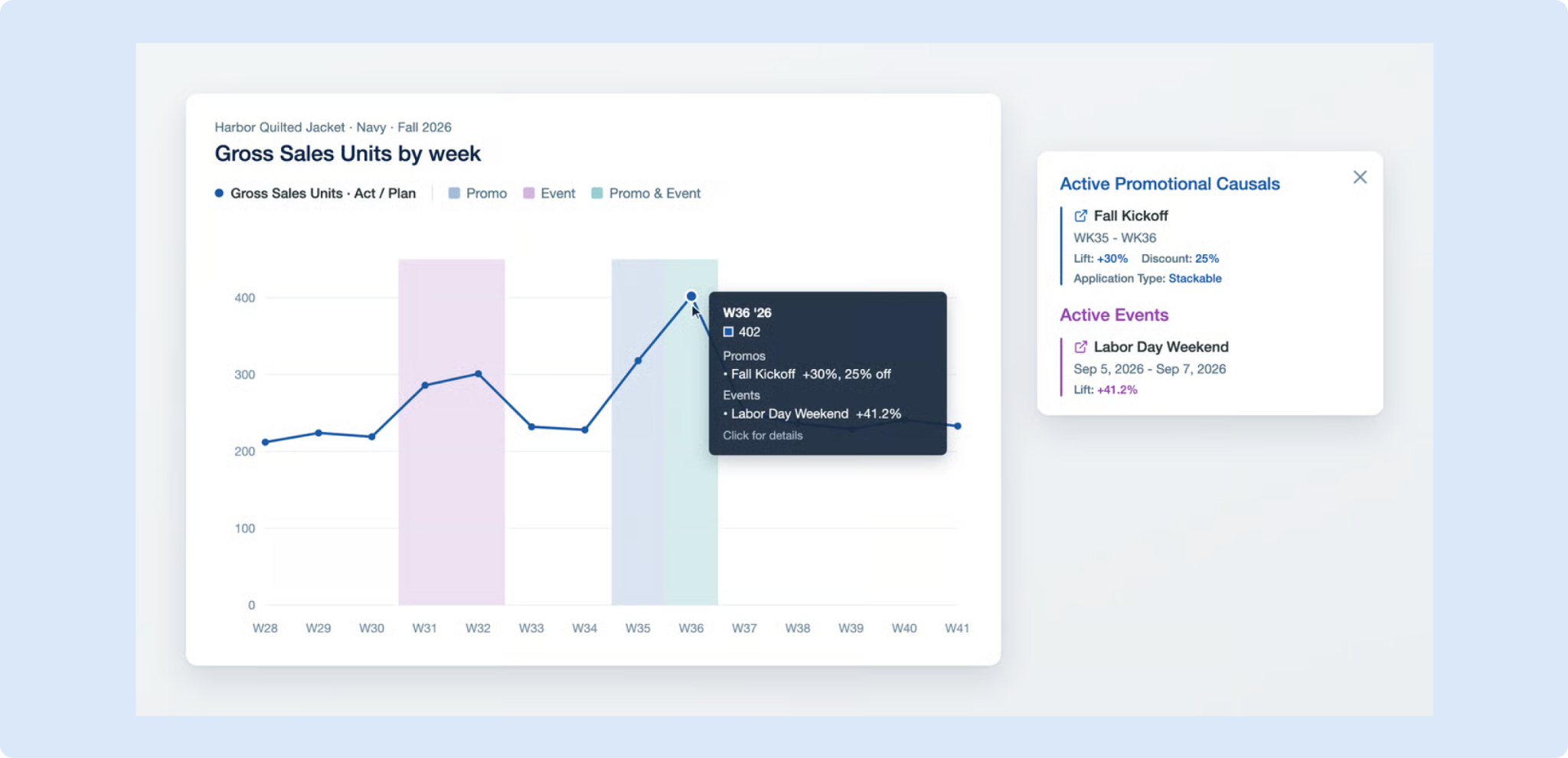
📈 Promotions and Events on the Visualization Chart
When you plot a metric in the Assortment Plan detail panel, the chart now shades every week with an active promotional causal or event: blue for promos, purple for events and teal for both. The colors match the markers in the grid column headers. You can see where a lift came from without leaving the chart.
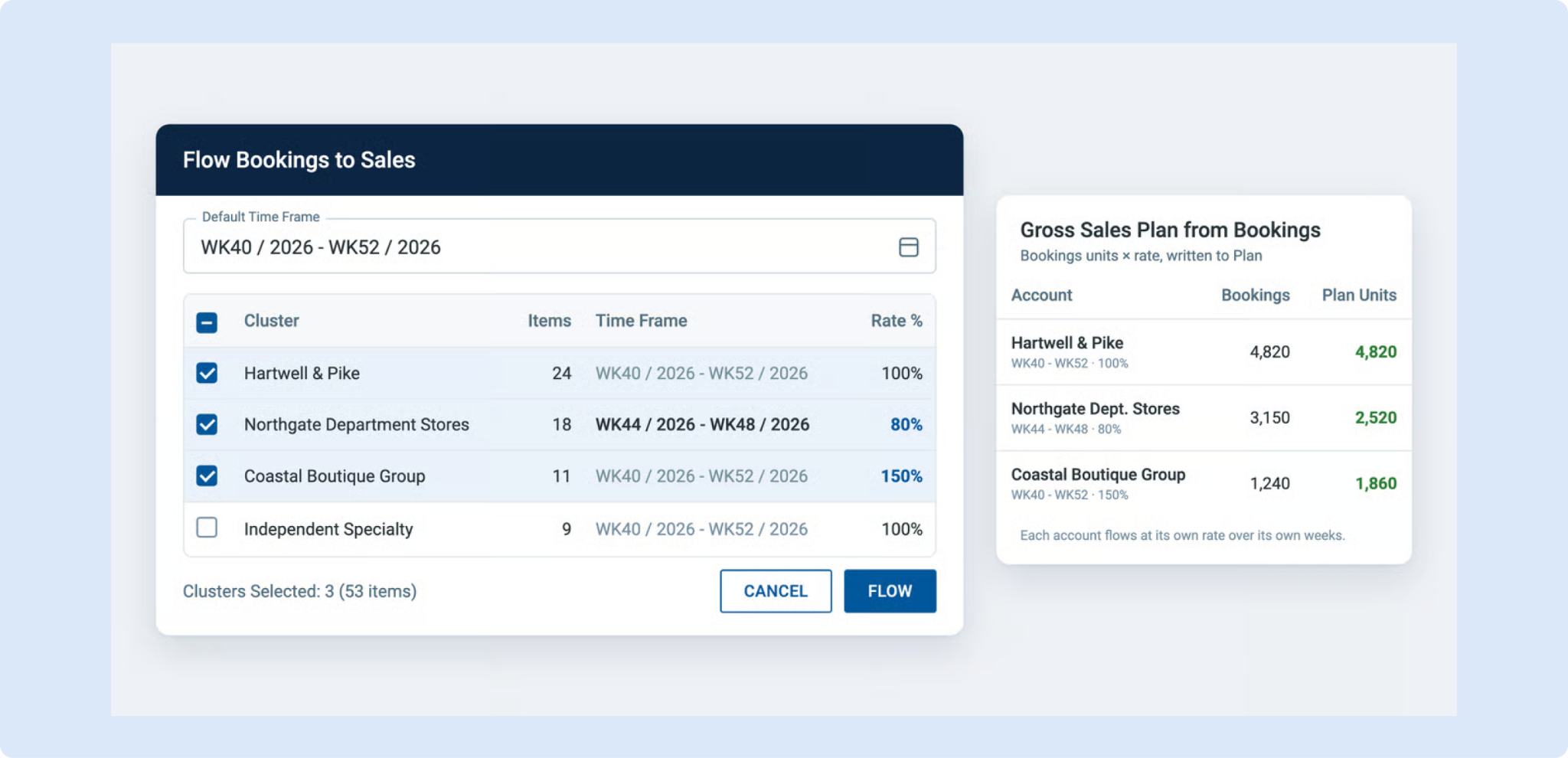
📦 Flow Bookings to Sales by Account
Flow Bookings to Sales now lets you set a different rate and weeks for each wholesale account and flow them all in one go. Every Bookings Enabled cluster in your selection gets its own editable Rate % row. Wholesale planners no longer need to open the popup once per account.
Read more in Flow Bookings to Sales in Assortment Plan
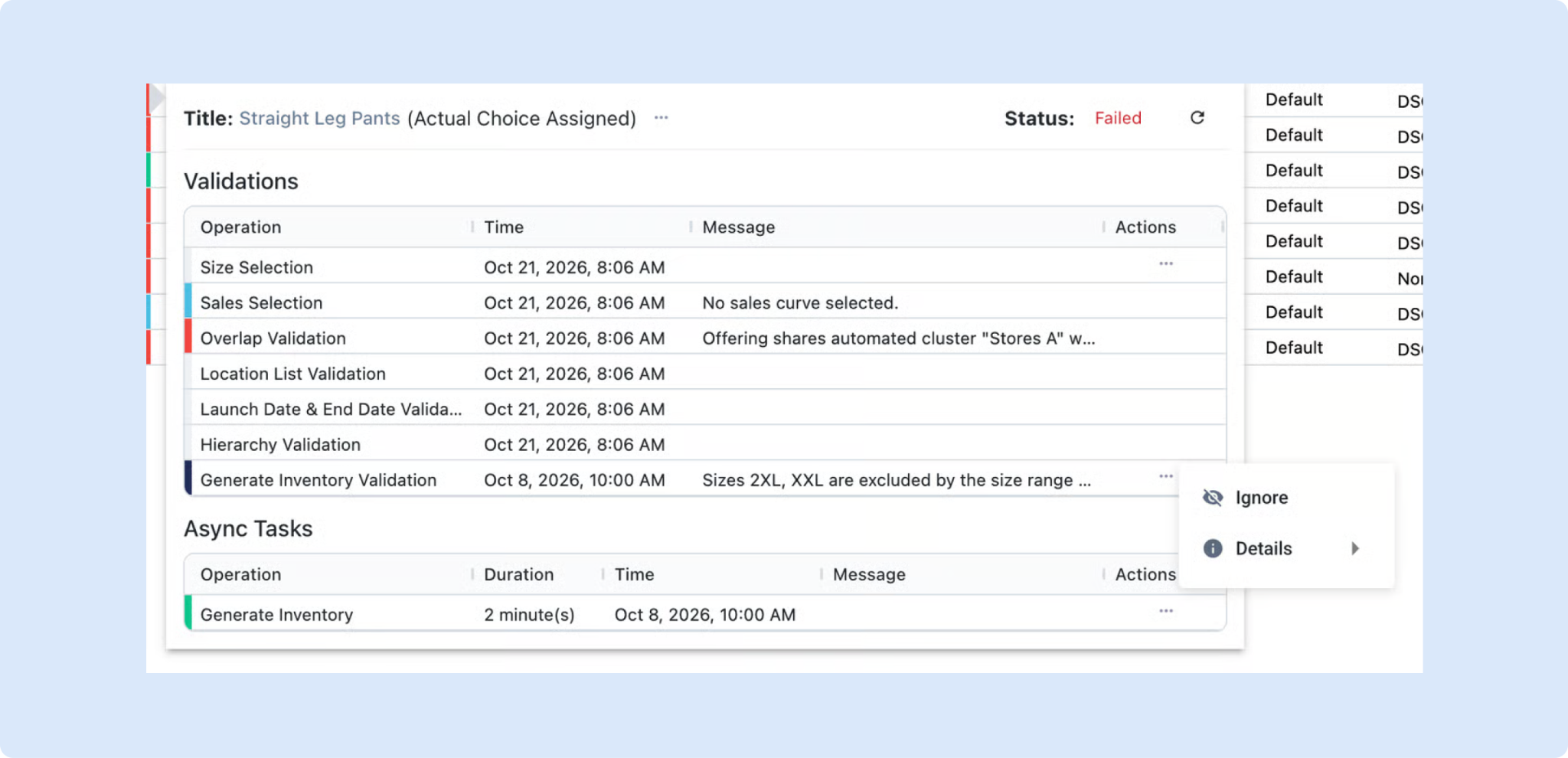
🧭 A Tidier Choice Status Panel
The Choice Status panel has a cleaner layout: every row fits on one line, a colored bar shows each row’s status, and all row actions (Ignore, Undo Ignore, Retrigger, Details) live in one ⋯ menu or on right-click. Status is easier to read at a glance and actions are easier to find.
Read more in Choice Status Panel
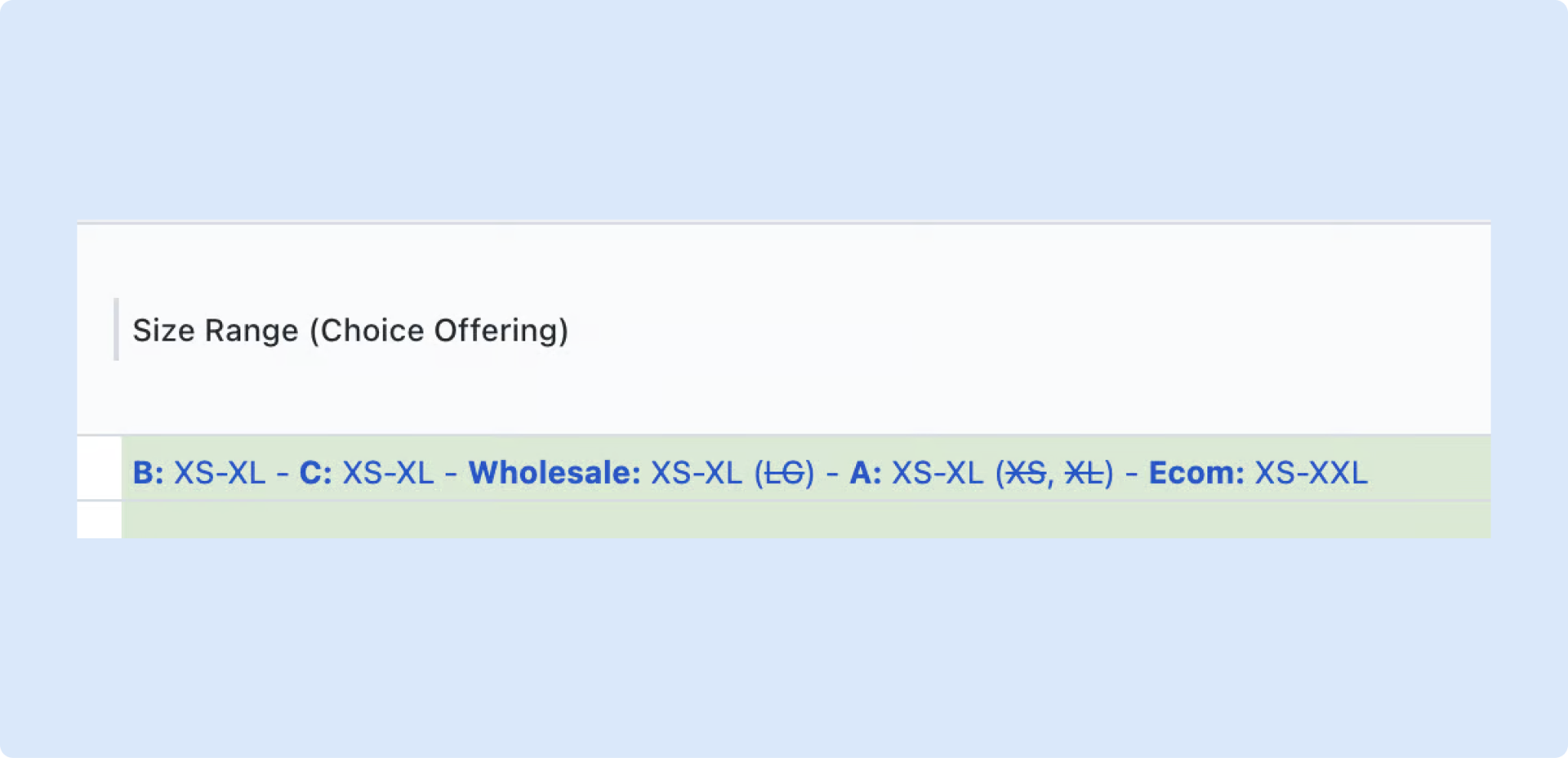
📋 Size Range Paste Copies Size Cluster Overrides
When you copy a choice’s Size Range and paste it onto other choices, its Size Cluster overrides, including size curve overrides and excluded sizes, now come along for every cluster the choices share. The Size Range column also shows which sizes each choice excludes. Set up overrides once and reuse them across your line.
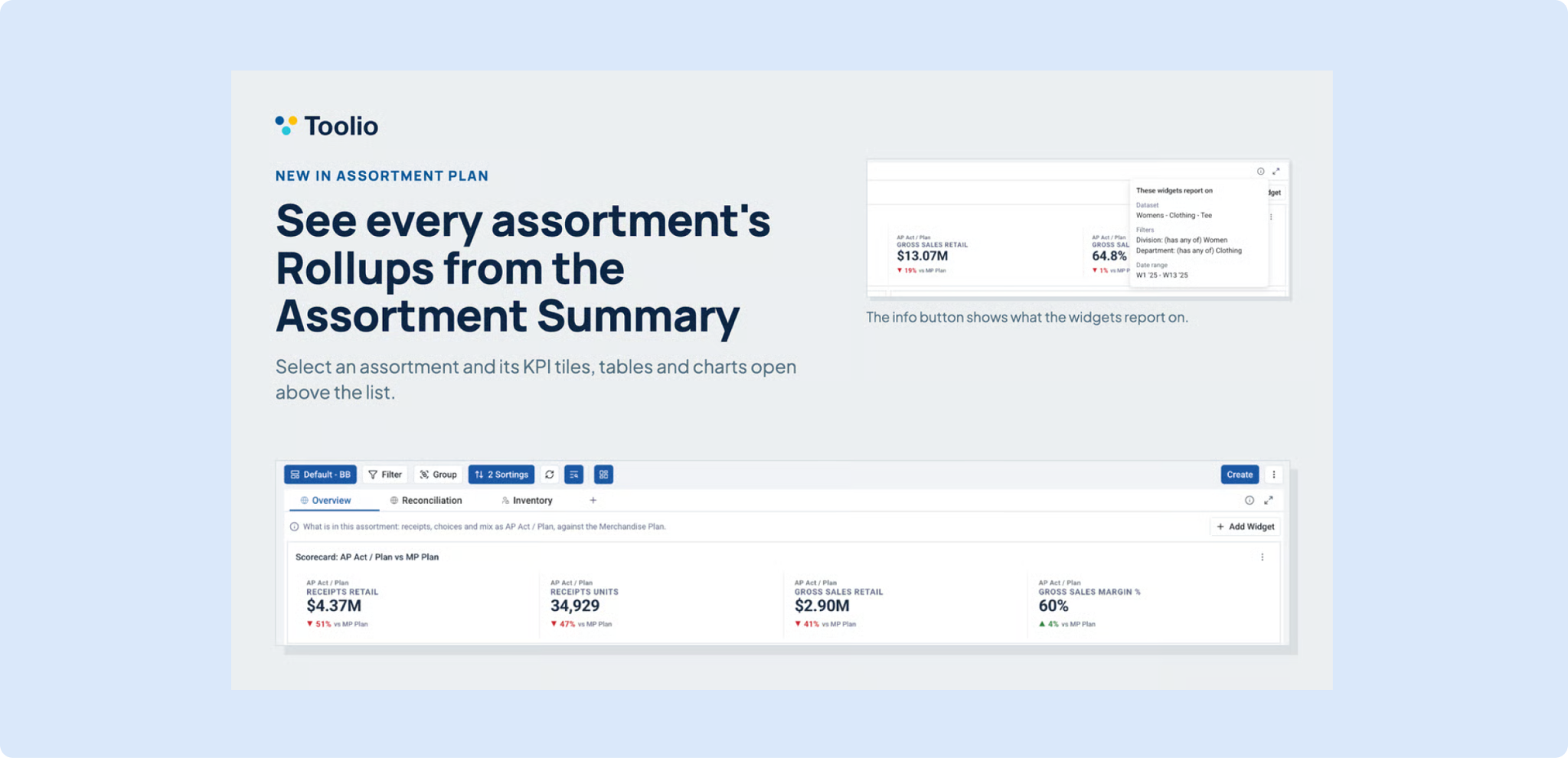
📊 Rollups on the Assortment Summary Page
The Rollups panel is now on the Assortment Summary page. Click Rollups in the toolbar and select an assortment to see its KPI tiles, tables and charts above the list, and use the new info button on any Rollups panel to see what its widgets report on. You can review assortments at a summary level without opening each plan.
Read more in How Do I Use the Rollups Panel in Assortment Plan?
Allocation
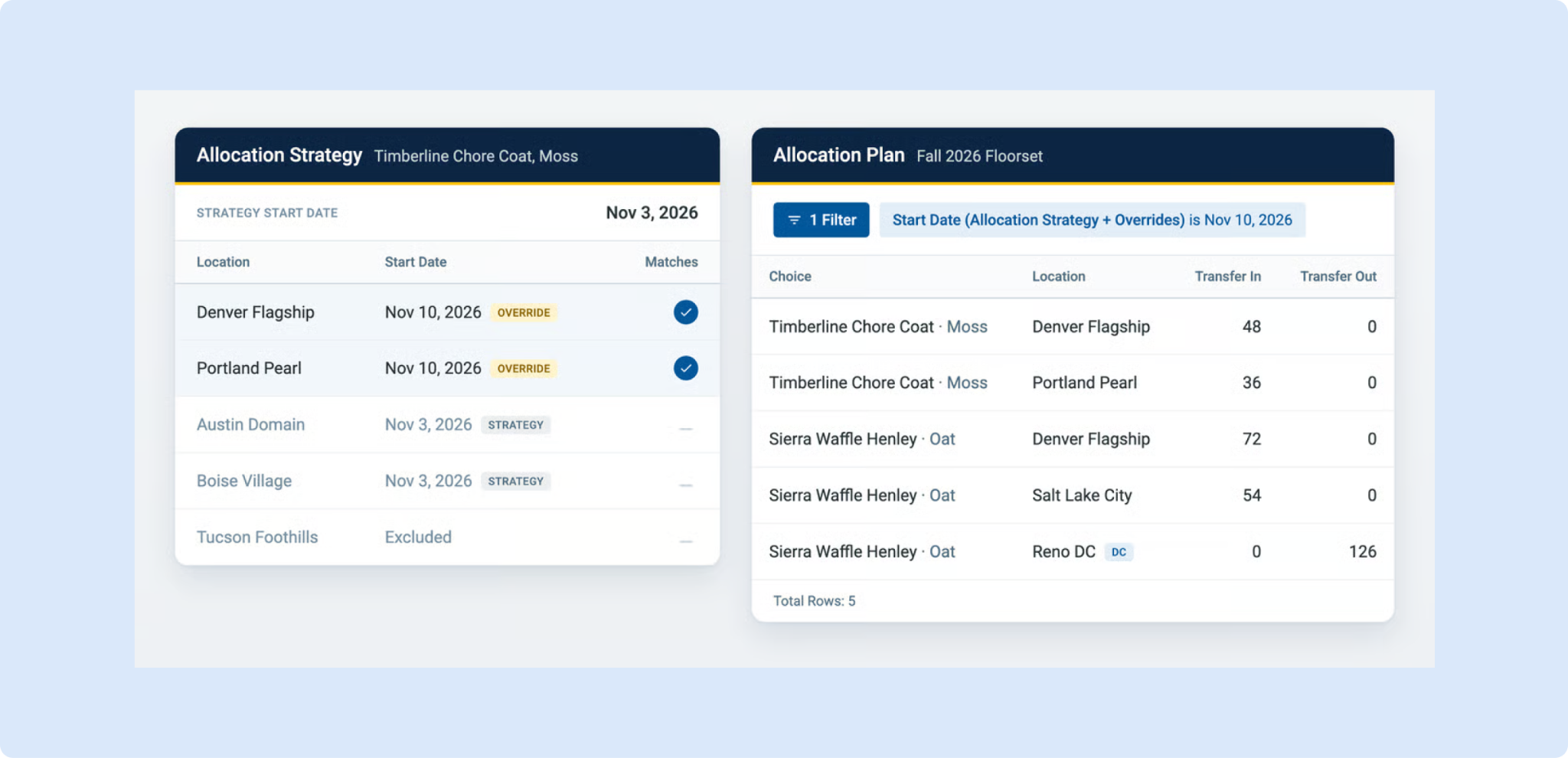
📅 Filter the Allocation Plan by Start Date, Including Location Overrides
You can now filter the Allocation Plan by the start date a choice has at each location, including dates set in a strategy’s location overrides. The existing Start Date filter only read the strategy header, so stores moved to a different date were easy to miss. Reviewing everything going out for a single launch is now reliable.
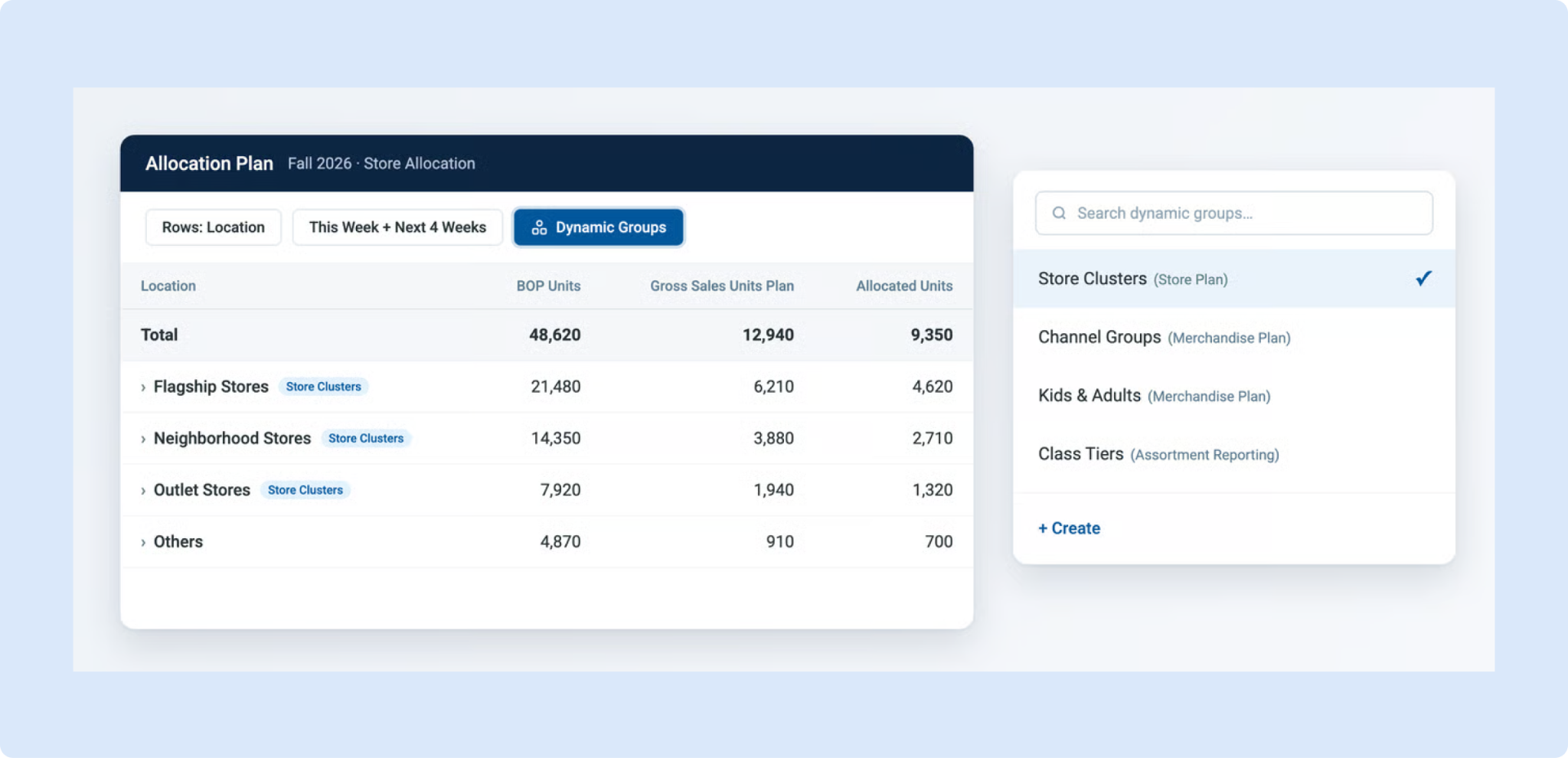
🧩 Dynamic Grouping on the Allocation Plan
You can now roll Allocation Plan rows up into your own dynamic groups, the same ones used in Merchandise Plan and Assortment Plan Reporting. Sum rows by attribute values like Channel, Color or Department, or use store list groups with the Location row group. Allocation analysis now speaks the same language as the rest of your planning.
Read more in Dynamic Grouping in MP and AP Reporting
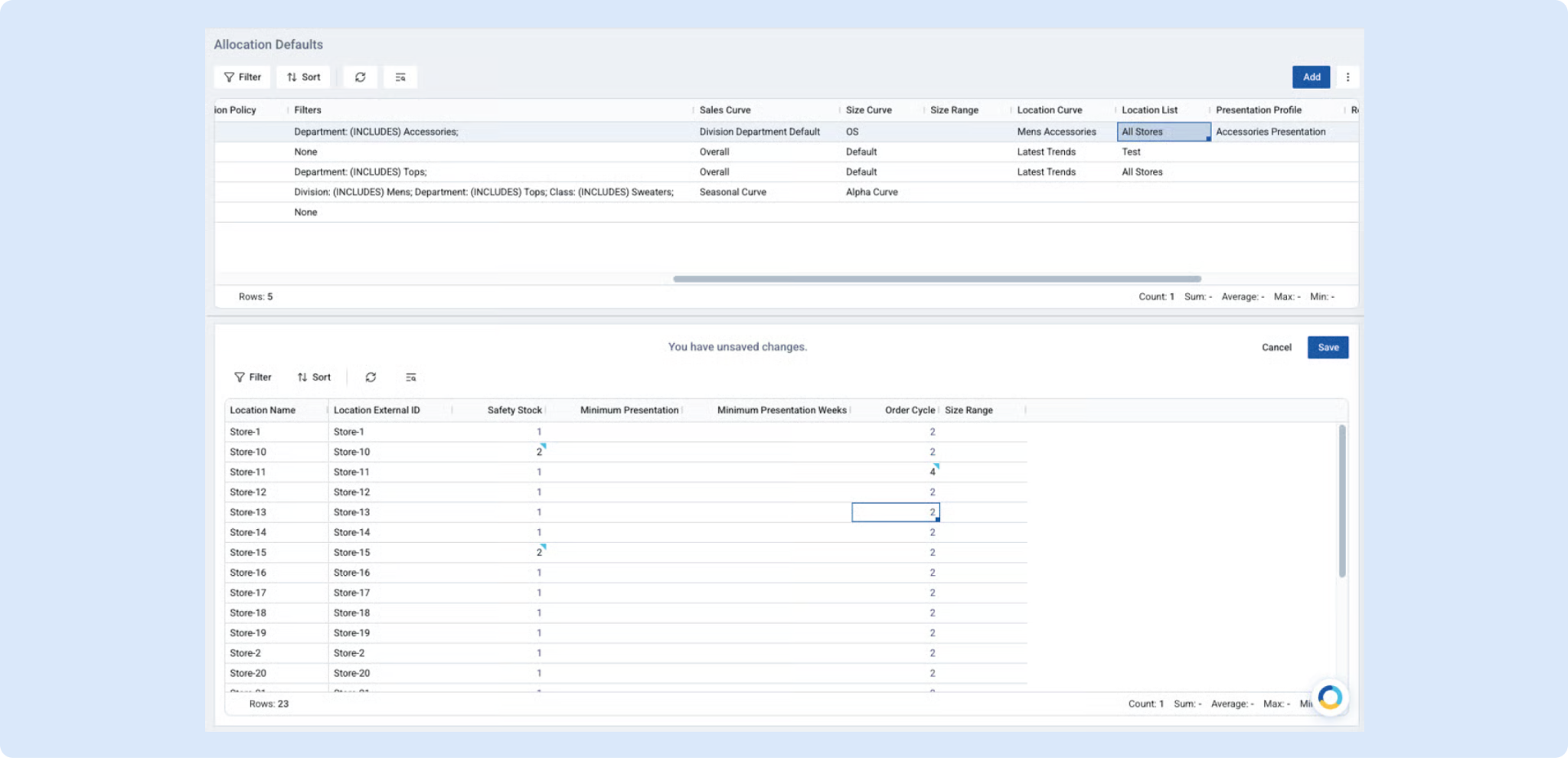
📍 Store-Level Values in Allocation Defaults
Allocation Defaults can now carry different values for individual stores. Right-click a default and choose Edit Location Overrides to set a store’s safety stock, order cycle, size range or minimum presentation once, and new strategies built from that default start with those values. Less repetitive setup for every new strategy.
Read more in Allocation Defaults
🎯 Size Curve Warnings That Respect Your Size Range
Allocation strategies no longer warn about sizes you have left out on purpose. When a strategy, or a location in its overrides, has a Size Range, only the sizes inside it are checked against the size curve. Warnings now point to real problems rather than intentional choices.
Read more in Allocation Strategy Status
⏳ Minimum Presentation Weeks in Allocation
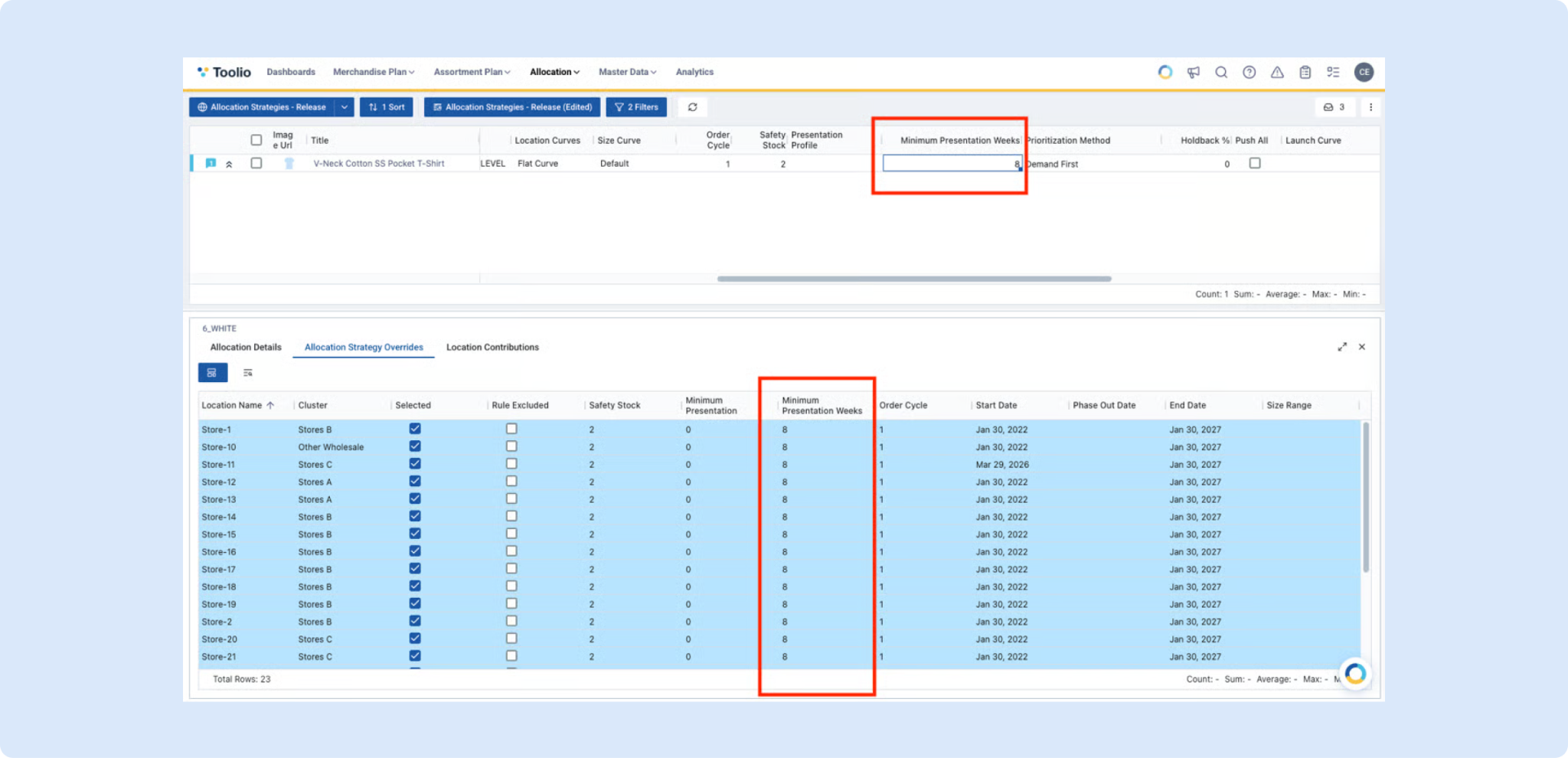
Allocation strategies can now stop holding a store’s presentation minimum after a set number of weeks, after which the store gets transfers for its forecasted demand only. Set Minimum Presentation Weeks on a strategy, per store in overrides, or per size in a presentation profile, with each window starting on the store’s own start date. This keeps inventory from being tied up in presentation stock longer than needed.
Read more in Minimum Presentation Policies in Allocation
General Platform Updates
🎨 Conditional Formatting: Compare With Another Metric
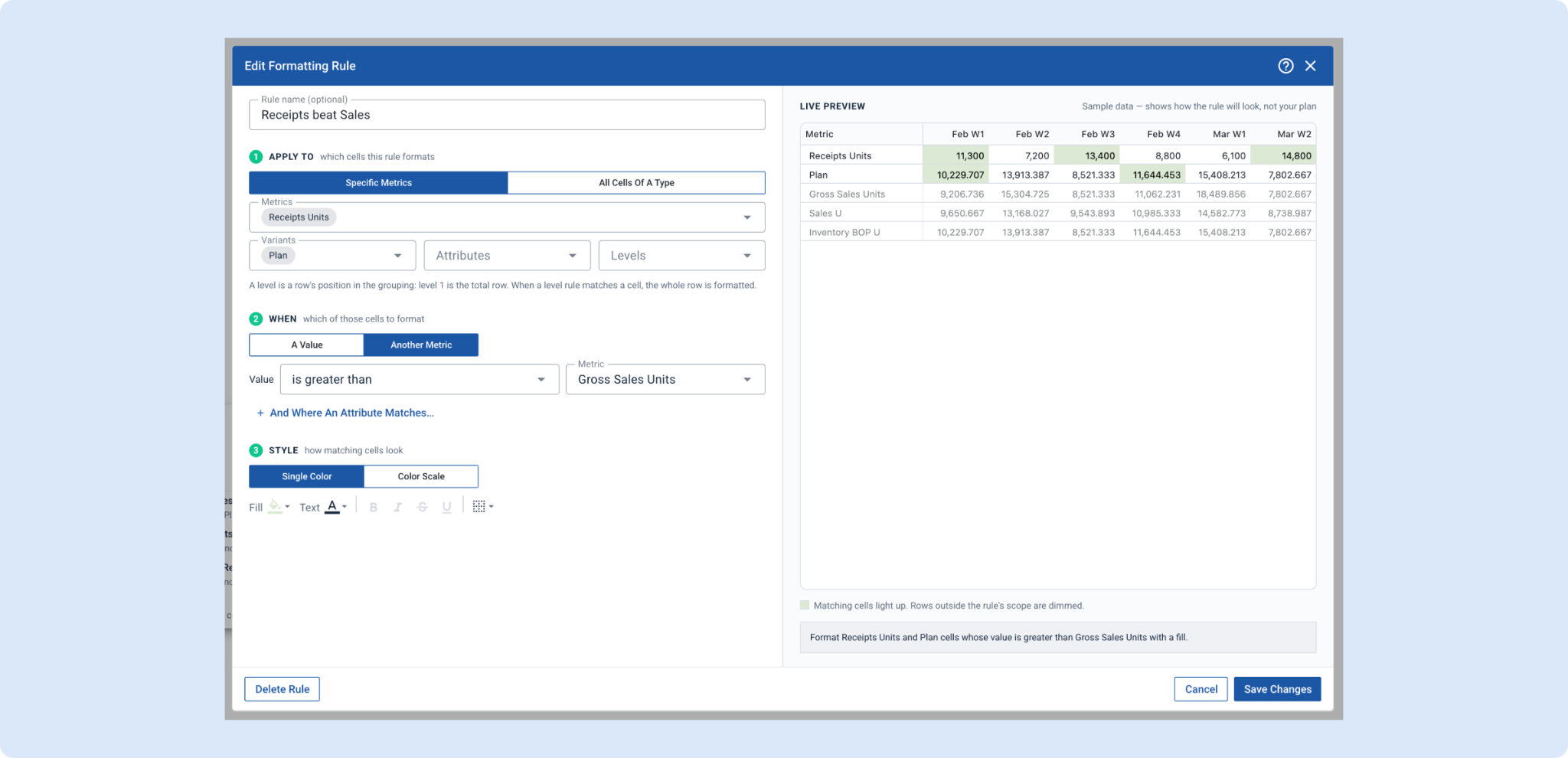
Conditional formatting rules can now compare a metric with another metric, not just a fixed number. Switch a rule’s condition from “A value” to “Another metric” to highlight, for example, weeks where ST Buffer Units exceeds Min Pres Units or Target ST differs from Projected ST. Exceptions between related metrics now stand out automatically.
Need Help? We're Here for You!
Our support team is always ready to assist you. If you have any questions about these updates or need help getting started with new features, don’t hesitate to reach out!
Is there a feature you think would be a great addition? Let us know here!


